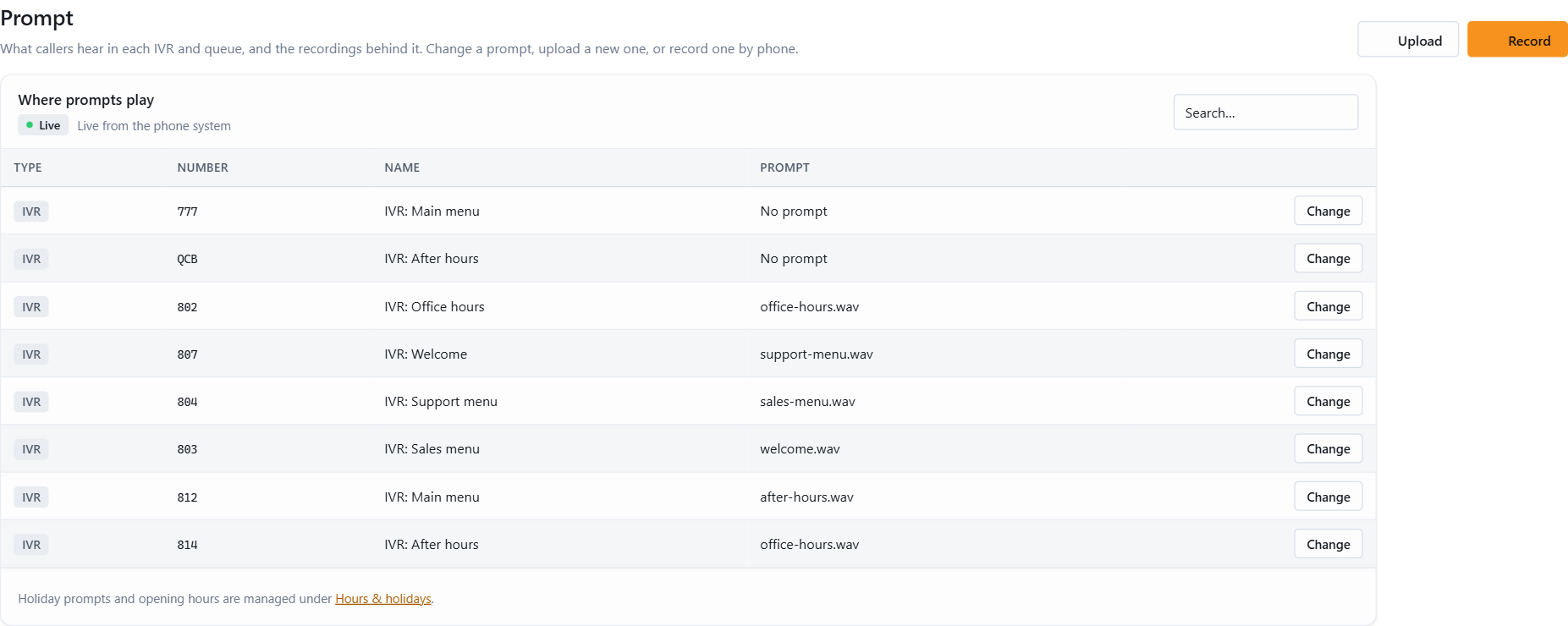
A prompt is the recording a caller hears in an IVR menu or while waiting in a queue. Prompt in the left menu shows every IVR and queue in your 3CX with the prompt it plays right now, and lets you change it, upload a new file or record one by phone. Nobody needs the 3CX Management Console.
Before you start
Your role needs the Prompt feature. See User roles.
The list is read live from the phone system. A queue or IVR that is hidden from JEDWare is not listed. See Visible queues.
WAV files play best as 8 kHz, 16-bit, mono. Anything else is converted by the phone system, which can lower the quality.
The Prompt page
Where prompts play lists each IVR and queue with its number, name and current prompt. No prompt means the IVR or queue plays nothing. File not in library means 3CX references a file that no longer exists; pick a new one.
Change the prompt of an IVR or queue
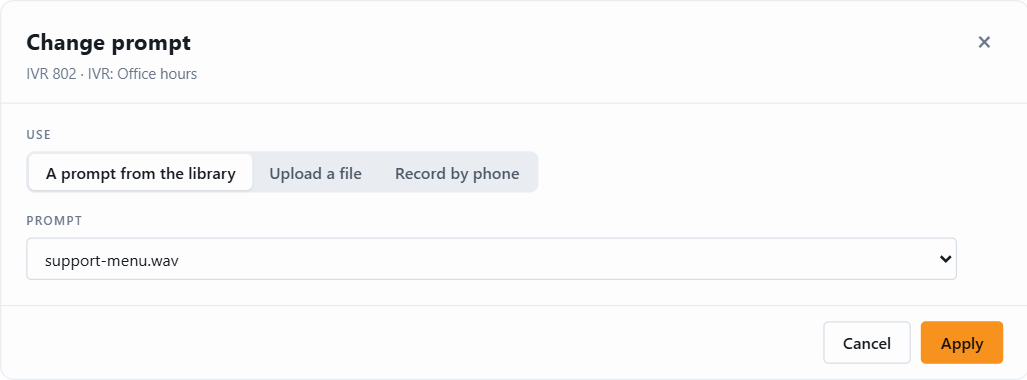
Click Change on the row.
Choose how to get the new prompt:
A prompt from the library: pick one of the recordings already on your 3CX.
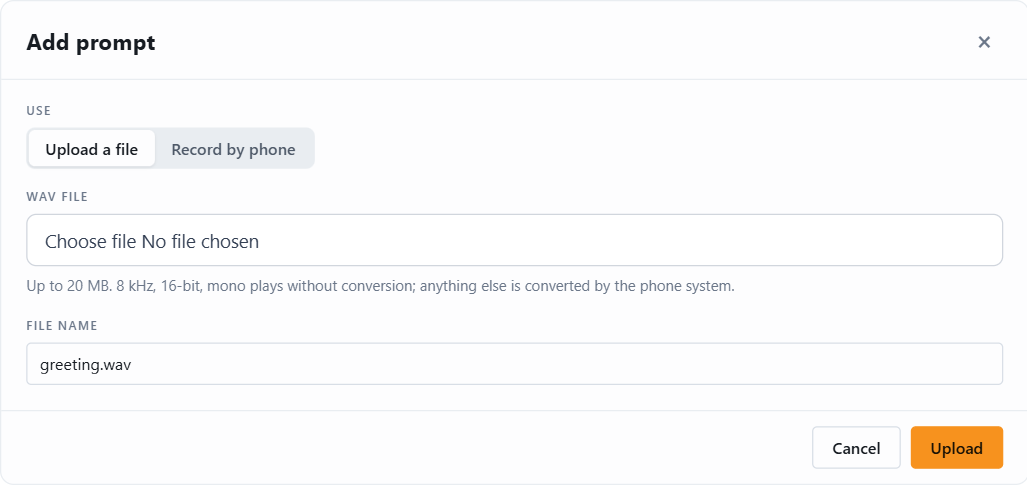
Upload a file: choose a WAV file from your computer and give it a name.
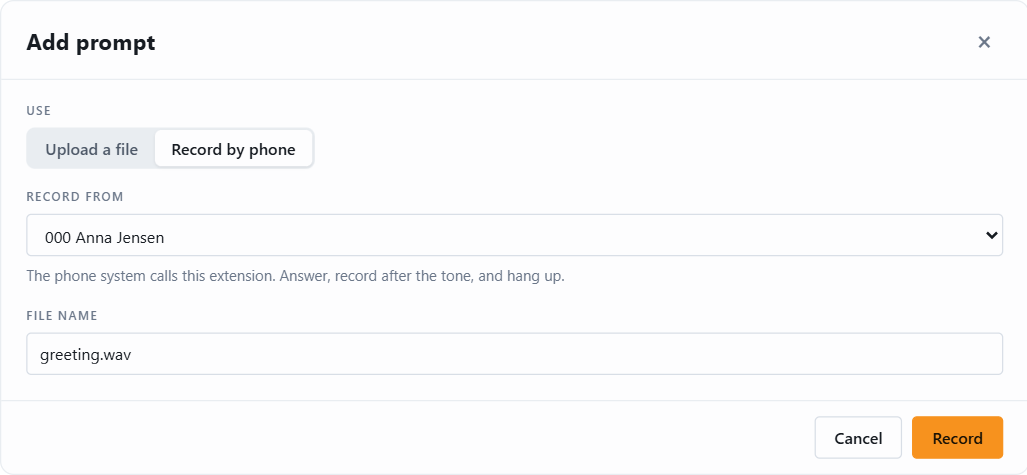
Record by phone: pick an extension. 3CX calls that phone, you record the prompt, and the recording is saved under the name you typed.
Click the button at the bottom. The IVR or queue plays the new prompt from the next call.
Add a prompt without assigning it
Upload and Record at the top of the page put a new recording in the library without changing any IVR or queue. Use them to prepare next week’s message in advance, then assign it with Change when the day comes.
Good to know
Recording by phone works like recording from the 3CX console: the phone rings, you speak after the tone, and you hang up to stop.
An uploaded file with the same name as an existing one is only replaced when you tick the overwrite option.
Prompts are files on the 3CX server. Deleting them is done in the 3CX Management Console, not in JEDWare.
Not using JEDWare yet?
Reports, dashboards and live wallboards for 3CX. Free 14-day trial, no credit card.