
Presets are named numbers your users pick from when they change a caller ID: “Sales line”, “Campaign spring”, “Support”. The name is internal, only the number reaches the called party. Presets and the rules for the dialog live on the Caller ID page, tabs Presets and Permissions.
Before you start
- Your role needs the Caller ID settings feature. See User roles.
- Only numbers your trunk provider accepts as caller ID work. Ask your 3CX partner if in doubt.
1. Add a preset
- Open Caller ID in the left menu and click the Presets tab.
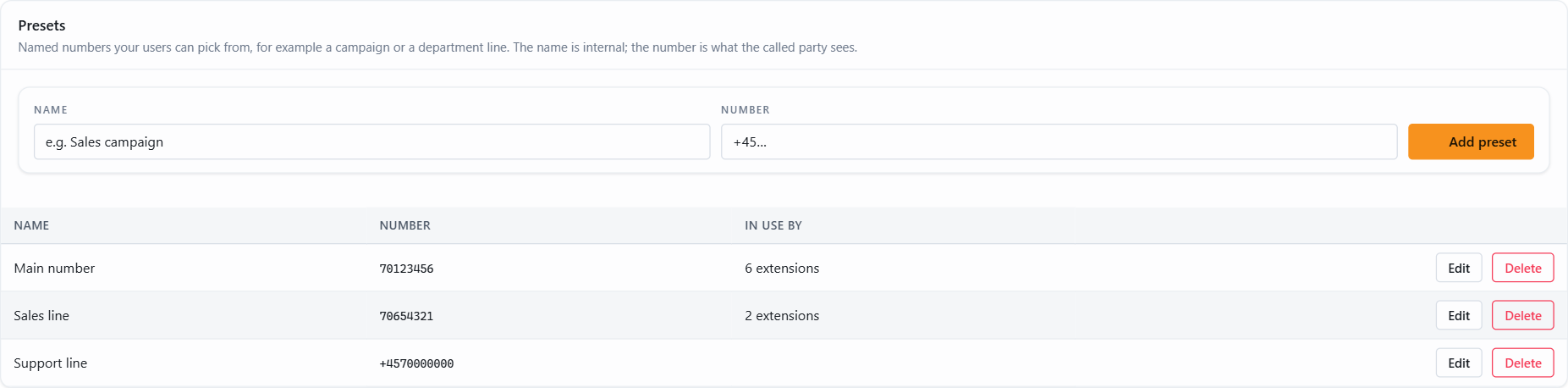
- Type a Name and the Number, and click Add preset.
The list shows every preset and how many extensions use it right now. Edit renames a preset or changes its number; the extensions that use it keep showing the old number until someone sets them again. Delete removes the preset from the list, not from the extensions.
2. Decide what users may choose
On the Permissions tab, untick the choices that should disappear from the Set caller ID dialog for everyone: a preset from the list, any typed number, the number defined in 3CX, or anonymous. Administrators can always use every choice.
Use it to keep agents on the approved numbers: leave only A preset from the list ticked, and nobody can type a number by hand.
Note in the dialog is a text shown to everyone who changes a caller ID, for example which number belongs to which campaign.

To change the caller ID of an extension, see Change Caller ID.
Not using JEDWare yet? The 3CX outbound caller ID feature page sums up presets, permissions and the log, with a free 14-day trial.