
Wallboard Layout 5 displays outbound statistics for up to 50 agents at a time.
Tip: If you have more than 50 Agents doing outbound calls, you can create several Wallboards with up to 50 Agents on each Wallboard.
About Wallboard Layout 5
The wallboard is an excellent monitoring tool for outgoing call center team leaders and agents. The wallboard includes sorting options on the majority of table rows, resulting in a dynamic experience wherein the agents change position based on their data.
This wallboard can show up to 50 separate agents and their individual outgoing call statistics at the same time. The wallboard view is determined by the number of agents added to the wallboard. You will have a full-width display if you add no more than 25 agents. When fewer agents is added, the height of the table rows adjusts, resulting in better visibility from a distance.
If you add more than 25 agents, the wallboard will automatically divide into two boxes, allowing you to see a total of 50 agents on the wallboard.
It is possible to add more than 50 agents, but you can only see the top 50 agents with the highest value of which column you sort by.
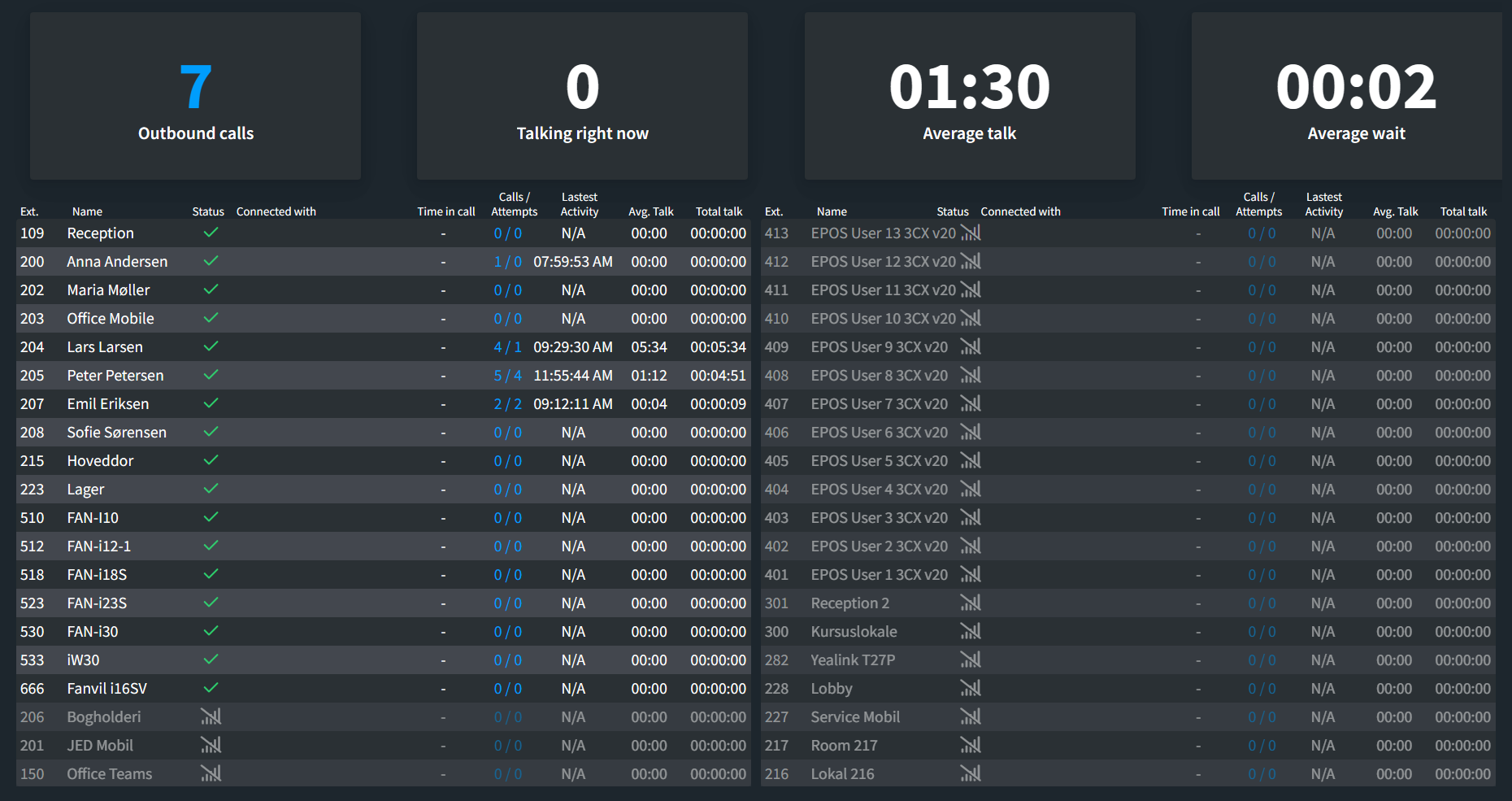
Explanation of wallboard measurements
Total Outbound is the aggregate of all outbound calls made by each agent that has been chosen to be shown on the wallboard.
Example: Extension 205 has 200 outgoing calls, Extension 206 has 100 outgoing calls, and Extension 207 has 50 outgoing calls. In this instance, the number 350 will be displayed.
Talking Right Now displays the number of agents who are currently on a call as displayed on the wallboard. Outbound calls are the only ones that have an impact on the number. Internal and inbound calls do not contribute to this measure.
Average Talk Time shows the average length of each call connected to an agent. This measure is only influenced when the agent makes an outgoing call and the call is answered on the receiver’s end. The formula is; total seconds talked/total number of answered calls.
Average Wait Time is the total amount of time an agent has been dialing before the prospect answers. A statistic that can be used to assess lead quality. The measurement formula is; Total seconds dialed/total number of answered calls.
Column explanation
Ext – Displays each agent’s extension number.
Name – Displays the agent’s name.
Status – Displays the agent’s current status. Available, busy, dialing, ringing, DND, or one of two custom statuses are all options.
Connected with – Displays the phone number to which the agent is connected if they are connected.
Time in call – This displays the amount of time the agent has spent on a call, beginning with the moment the recipient answers the phone.
Outbound calls – This metric displays the total number of successful outbound calls. When a call is answered, it is considered successful and valid. Internal and inbound calls will have no effect on this value.
Average talk – This metric displays the agent’s average talking time. Only successful outbound calls are counted.
Total talk – The entire time the agent has been in an active outbound call.
Wallboard Layout 5 settings
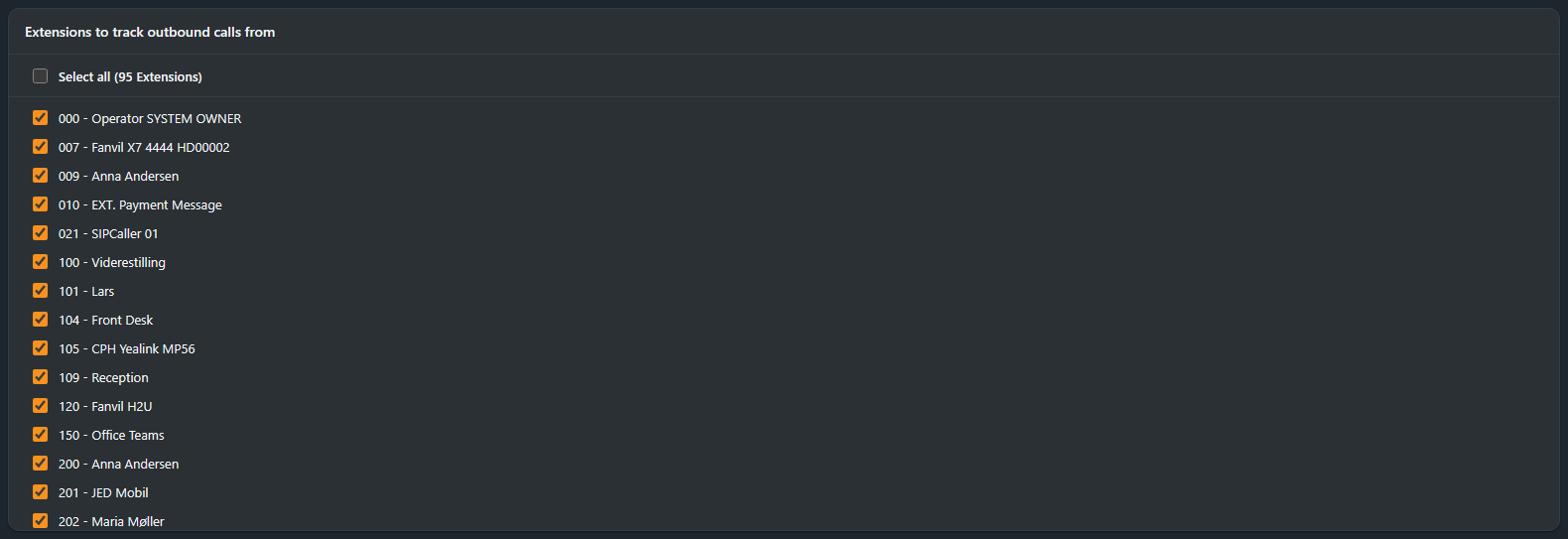
Select agents
Open the Agents tab and tick the agents under Extensions to track outbound calls from; Select all picks every extension at once. Up to 25 agents render as one full-width table; from 26 to 50 the board splits into two tables side by side.
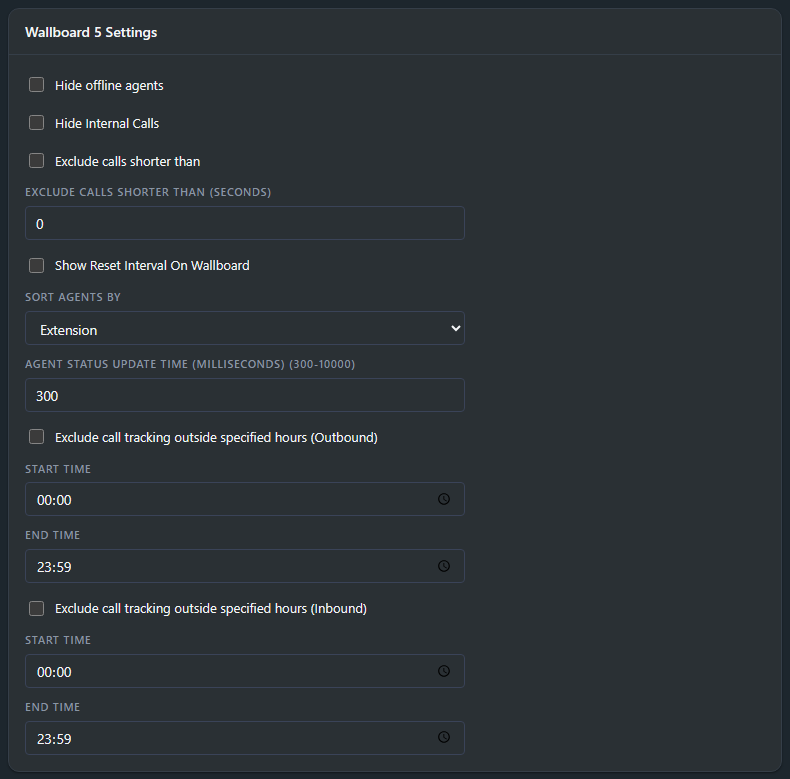
Display options
- Hide offline agents removes offline agents entirely.
- Hide Internal Calls keeps internal calls out of the tracked numbers.
- Exclude calls shorter than ignores calls below the number of seconds you enter (0 disables the filter).
- Show Reset Interval On Wallboard displays the reset schedule on the board itself.
- Sort agents by orders the table by Extension, Name, Outbound call, Avg. Talk time or Total talk.
- Agent status update time sets how often the board refreshes, from 300 to 10000 milliseconds. On large systems with many queues and agents, raising it from 300 ms toward 5000 ms lowers the load on your 3CX server.
- Exclude call tracking outside specified hours keeps calls outside the start and end times you set out of the numbers, so night calls stay out of the daily figures. Outbound and inbound tracking each have their own time window.
Press Save after changing settings.
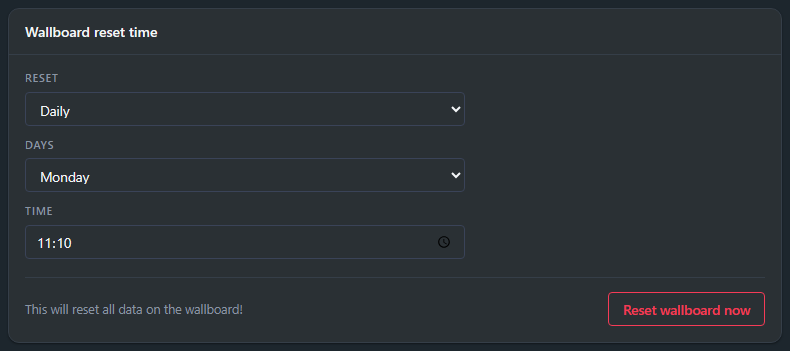
Reset schedule
The wallboard counts from its last reset. Reset sets the schedule: daily, weekly or monthly. Days picks the weekday or day of the month, and Time is the time of day the counters clear.
Reset wallboard now clears all data on the wallboard immediately.
Share the wallboard
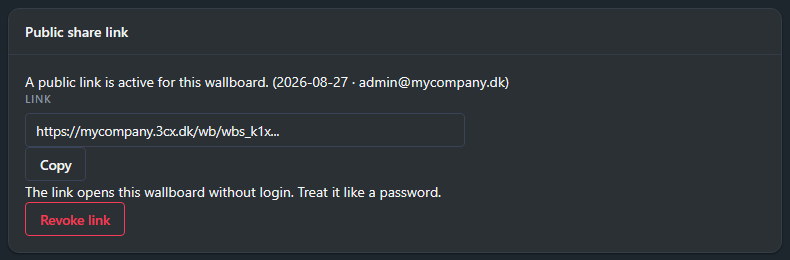
Generate a public link and open it on any screen (a TV, an info display, a browser): the wallboard runs live without logging in.
Click Generate link in the Public share link panel on the General tab. The panel shows when the link was made and by whom, Copy puts it on the clipboard, and Revoke link kills it. Treat the link like a password: anyone who has it can see the board.
For creating wallboards and the settings shared by every layout, see How to create a wallboard.
New to JEDWare? The 3CX wallboard feature page shows what every layout offers and how the share link for TVs works, with a free 14-day trial.