Wallboard Gallery
Wallboard Gallery Empower Your Team with Real-Time Data Effective wallboards deliver real-time operational insights, keeping your team informed and proactive.
Wallboard Layout 4 shows queue statistics only, with no agent rows: answered percentage, SLA breaches, and totals for each selected queue.
A row turns red when nobody is logged into the queue, which makes the board a quick health check when you run many wallboards.
| Total inbound calls | All inbound calls across the selected queues since the last reset |
| Answered Calls | Share of inbound calls that were answered, in percent |
| SLA Breach | Number of calls that exceeded the SLA time |
| Total Outbound Calls | Outbound calls made by agents selected in outbound tracking |
| Available / In queue | Agents available versus agents logged into the queue |
| Waiting in queue | Callers currently waiting in the queue |
| Waiting time / Average Wait Time | The current first caller’s wait and the average since reset |
| Avg. Talk | Average talk time for the queue’s answered calls |
| Queue calls | Answered percentage and answered/total counts per queue |
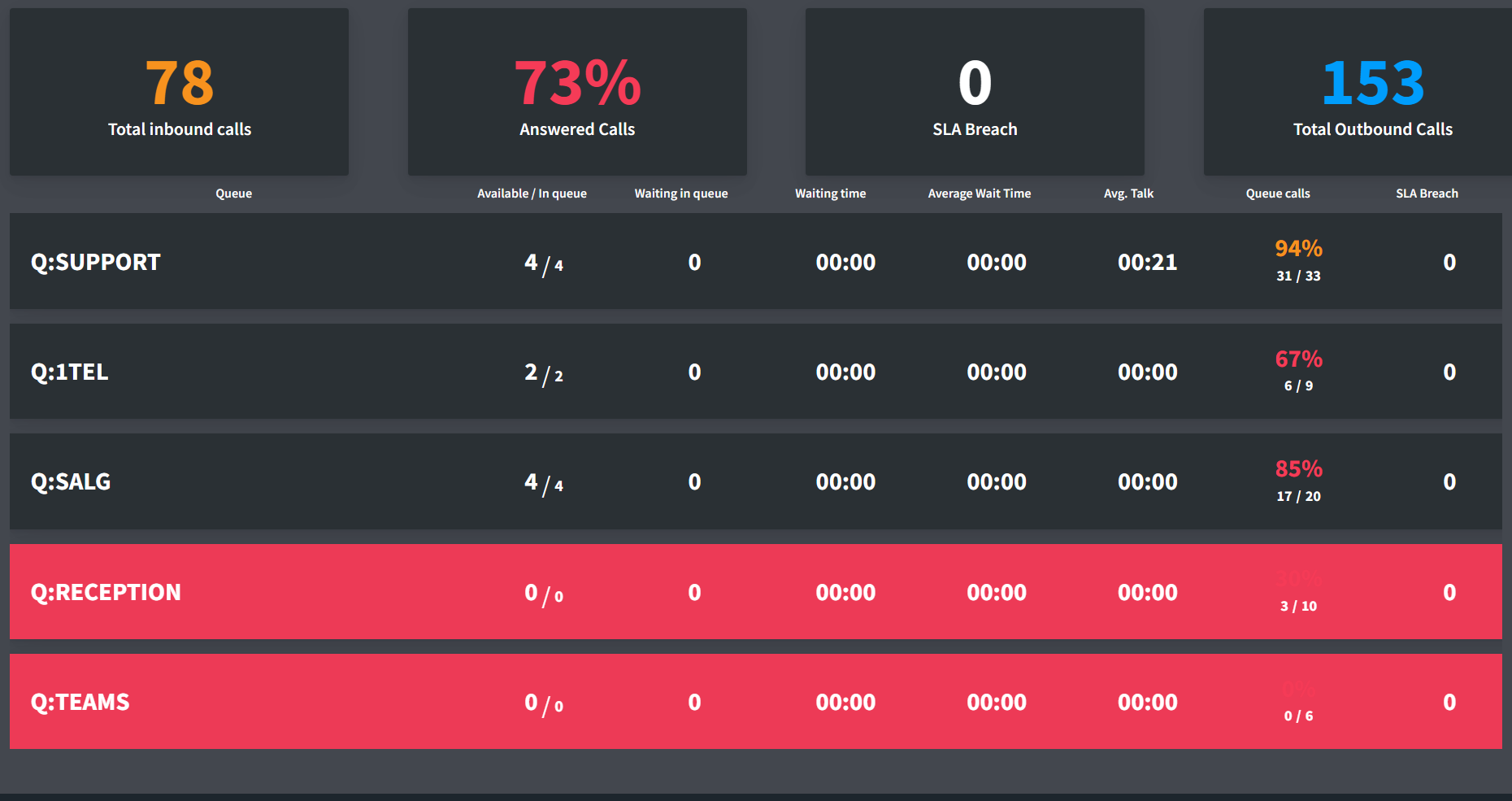
A red row means nobody is logged into the queue.
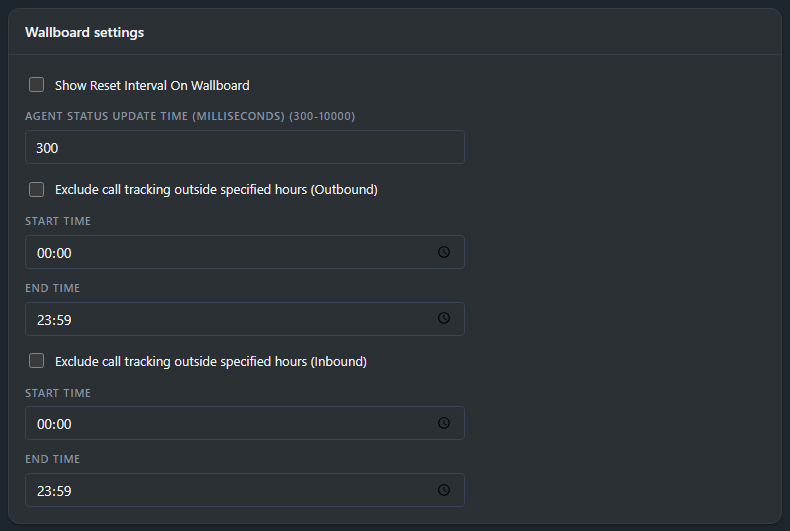
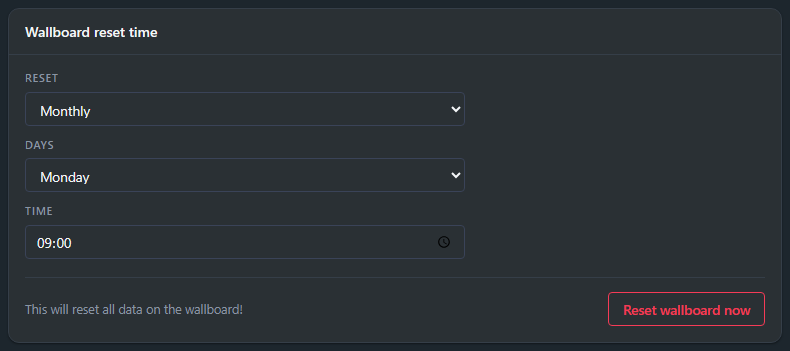
Layout 4 needs almost no configuration:
Press Save after changing settings.
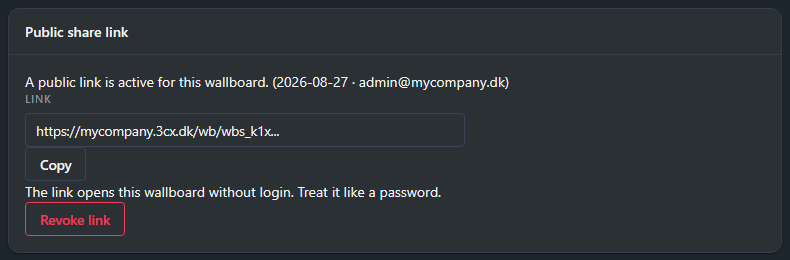
Generate a public link and open it on any screen (a TV, an info display, a browser): the wallboard runs live without logging in.
The panel lists every link with when and by whom it was created. Treat a link like a password: anyone who has it can see the board, and you can delete it at any time to revoke access.
For creating wallboards and the settings shared by every layout, see How to create a wallboard.
Find more Wallboard info in the posts below
Wallboard Gallery Empower Your Team with Real-Time Data Effective wallboards deliver real-time operational insights, keeping your team informed and proactive.
How to create a wallboard Introduction to easily create Wallboards for your 3CX with JEDWare Get started with JEDWare Wallboards.
Wallboard Layout 1 – Single Queue Wallboard The Wallboard Layout 1 is built for a single queue. This layout will
Wallboard Layout 2 – Multiple Queues Wallboard This design is for you who want a great overview from 6 to
Wallboard Layout 3, our 4 Queues and multiple extension status Wallboard This design will show extension statuses in color-based boxes
Wallboard Layout 4 – Multiple Queue – NO extension Wallboard Wallboard layout 4. This wallboard will display the statistics of
Wallboard Layout 5 – Outbound Wallboard Wallboard Layout 5 displays outbound statistics for up to 50 agents at a time.
Wallboard Layout 6 – Inbound Wallboard Wallboard Layout 6, Inbound Layout 6 is the “twin wallboard” to Layout 5, but
Wallboard Layout 7 – Traditional Wallboard, with e-Mail function About Wallboard Layout 7 Wallboard Layout 7 is JEDWare’s version of
Wallboard Layout 8 – Inbound Call Center Wallboard About Wallboard Layout 8 Wallboard Layout 8 displays inbound statistics for both
Wallboard Layout 9 – Single Queue with Queue Call-Back updates The Wallboard Layout 9 is built based on Layout 1,
Wallboard Layout 10 Inbound Call Centre Wallboard with QCB About Wallboard Layout 10 Wallboard Layout 10 shows inbound statistics for
Wallboard Layout 12 – Queue Waiting Overview The Wallboard Layout 12 is built for only one purpose, to see how
Enable SLA Sound Alerts on the Dashboard In JEDWare you can enable SLA sound alerts for each queue on your
We use cookies and similar technologies to operate and improve our website, analyse website usage, and support functionality and marketing. You can choose which categories you consent to.