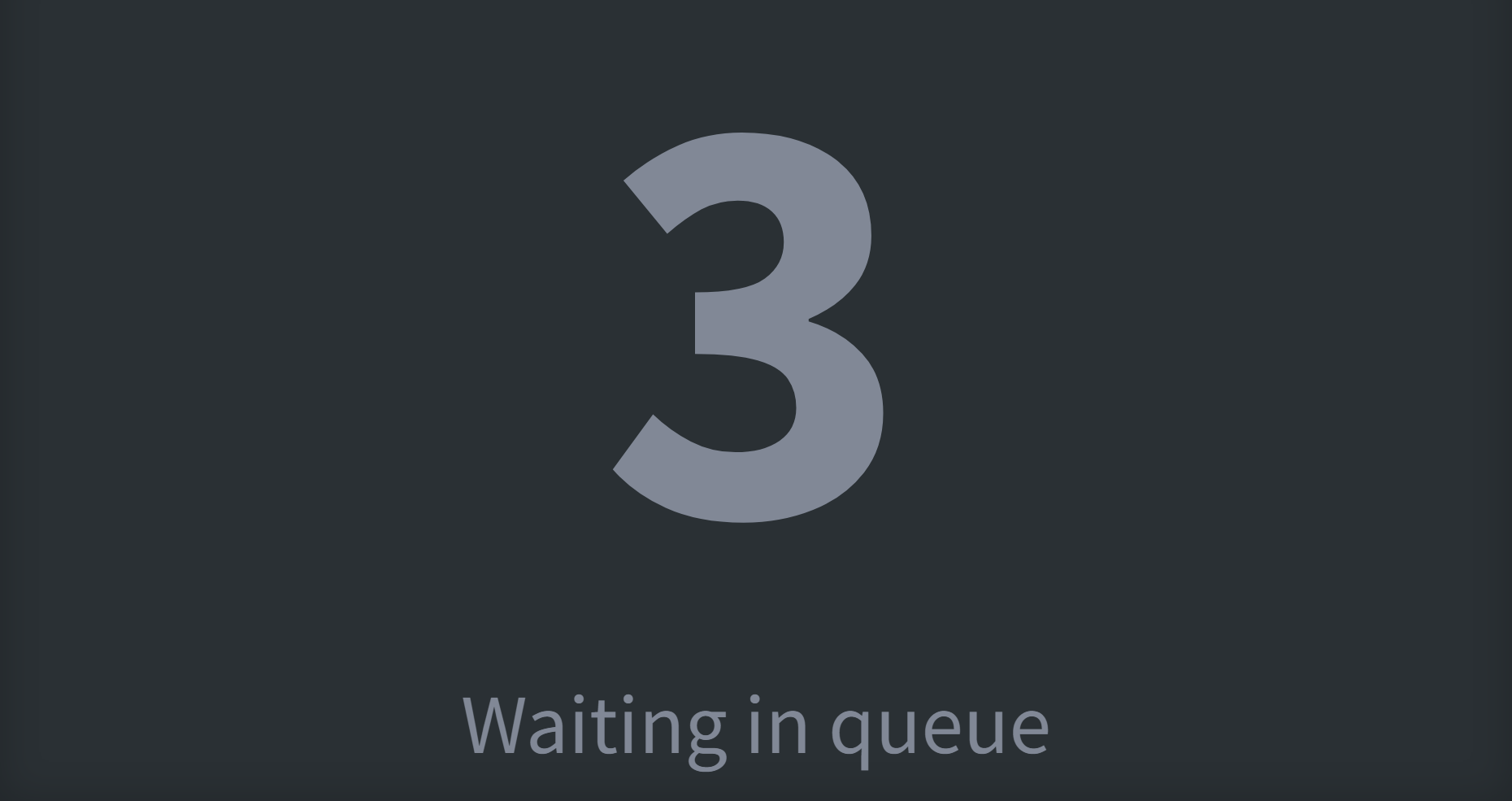
The Wallboard Layout 12 is built for only one purpose, to see how many customers you have waiting in queue(s). This layout will display the number of callers waiting in the selected queues with a text and numbers that will grant you an excellent overview also on the big TV screen.
Other than displaying the number of callers in queue, this wallboard will also change the color of the number depending on how many callers are waiting in queue:
At 0:Gray. At 1 to 5:Green. At 6 to 10:Orange 11 or more callers:Red
Wallboard Layout 12 settings
Queue settings and alert thresholds
Open the Queues tab and add the queues to count waiting callers from with Add queue; the board shows the combined total. Each queue has its own alert thresholds, and changes take effect after the wallboard resets:
Calls in queue: how many waiting callers trigger the alert.
Abandoned calls: how many lost calls trigger the alert.
SLA (sec): the SLA time for the queue.
SLA is close alert (sec): warns this many seconds before the SLA time is reached.
Enable SLA alert sounds: plays a sound when the SLA alert triggers.
Share the wallboard
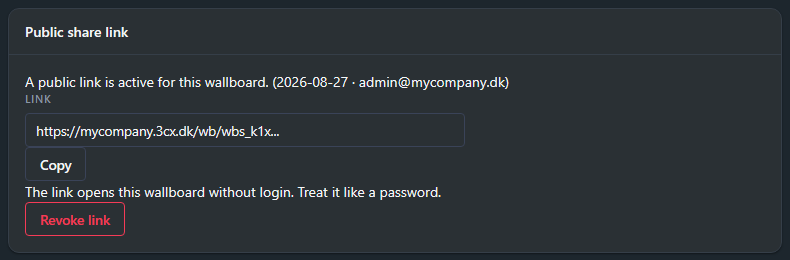
Generate a public link and open it on any screen (a TV, an info display, a browser): the wallboard runs live without logging in.
Click Generate link in the Public share link panel on the General tab. The panel shows when the link was made and by whom, Copy puts it on the clipboard, and Revoke link kills it. Treat the link like a password: anyone who has it can see the board.