
Advanced search is where the deeper questions get answered. Pick a report tab, a period and an interval, choose the agents, queues or departments you care about, and drill into the result.
The nine tabs: Agent, Agent status, Queue, Queue Callback, IVRs, Department, Search (free text), From/To and Ring Group.
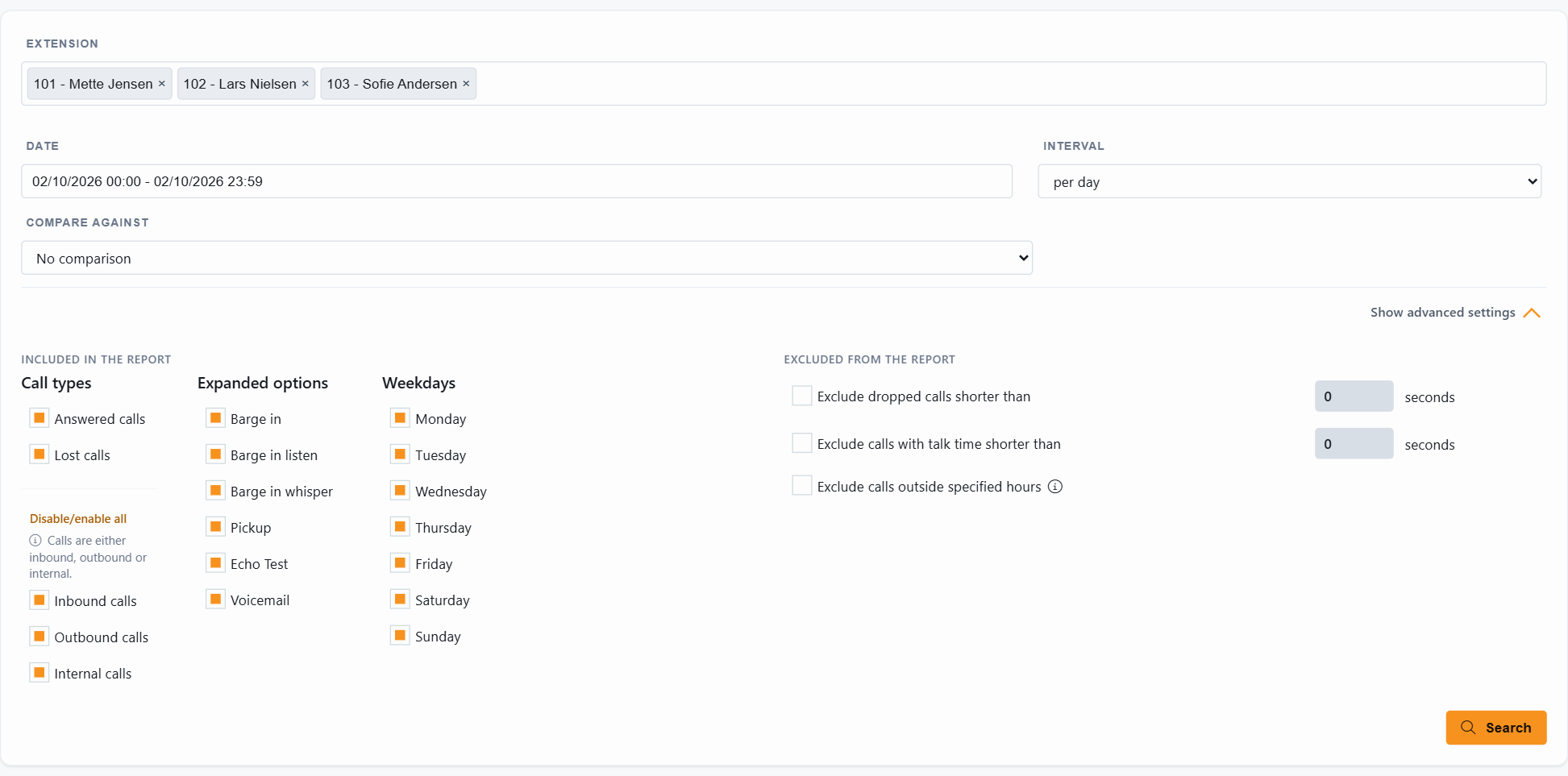
The search fields
- Extension / Queue / Department: type in numbers or names and pick from the list, or select ALL.
- Date: any period, from one day to a year.
- Interval: how the result is split: 1, 5, 15, 30 or 60 minutes, the same per day, or one row per day. A whole month per day gives one row per day; one day at 15 minutes shows how the day went.
- Compare against: put the previous period, last week, last month, last year or a custom period next to the result.
Advanced settings
Click Show advanced settings under the search fields to narrow the report:
- Included in the report: call types (answered, lost, inbound, outbound, internal) and expanded options such as barge in, pickup, echo test and voicemail. Untick what you do not want to count.
- Weekdays: only calls on the ticked days count.
- Excluded from the report: leave out dropped calls shorter than a number of seconds, calls with a talk time shorter than a number of seconds, and (for queues) everything except SLA breaches.
- Use agent-specific data (on by default): the numbers follow the agent who actually handled the call. See JEDWare philosophy for 3CX reporting for why that matters.
- Compare against: put the previous period, last week, last month, last year or a custom period next to the result.
The result
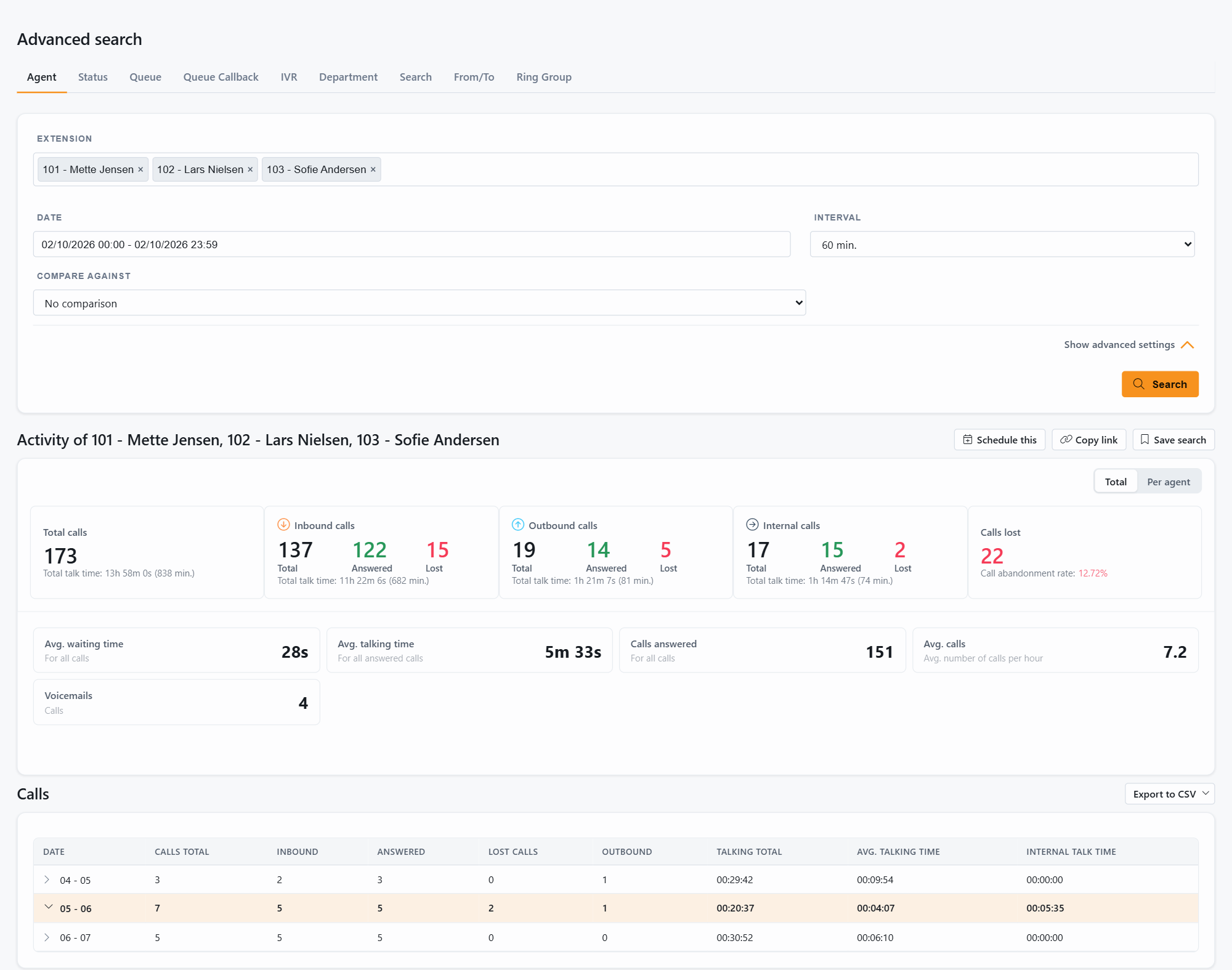
Reading the result
- Activity tiles: totals for the period, with the talk time under each. Total and Per agent (or Per queue) switch between one summary and one row per agent.
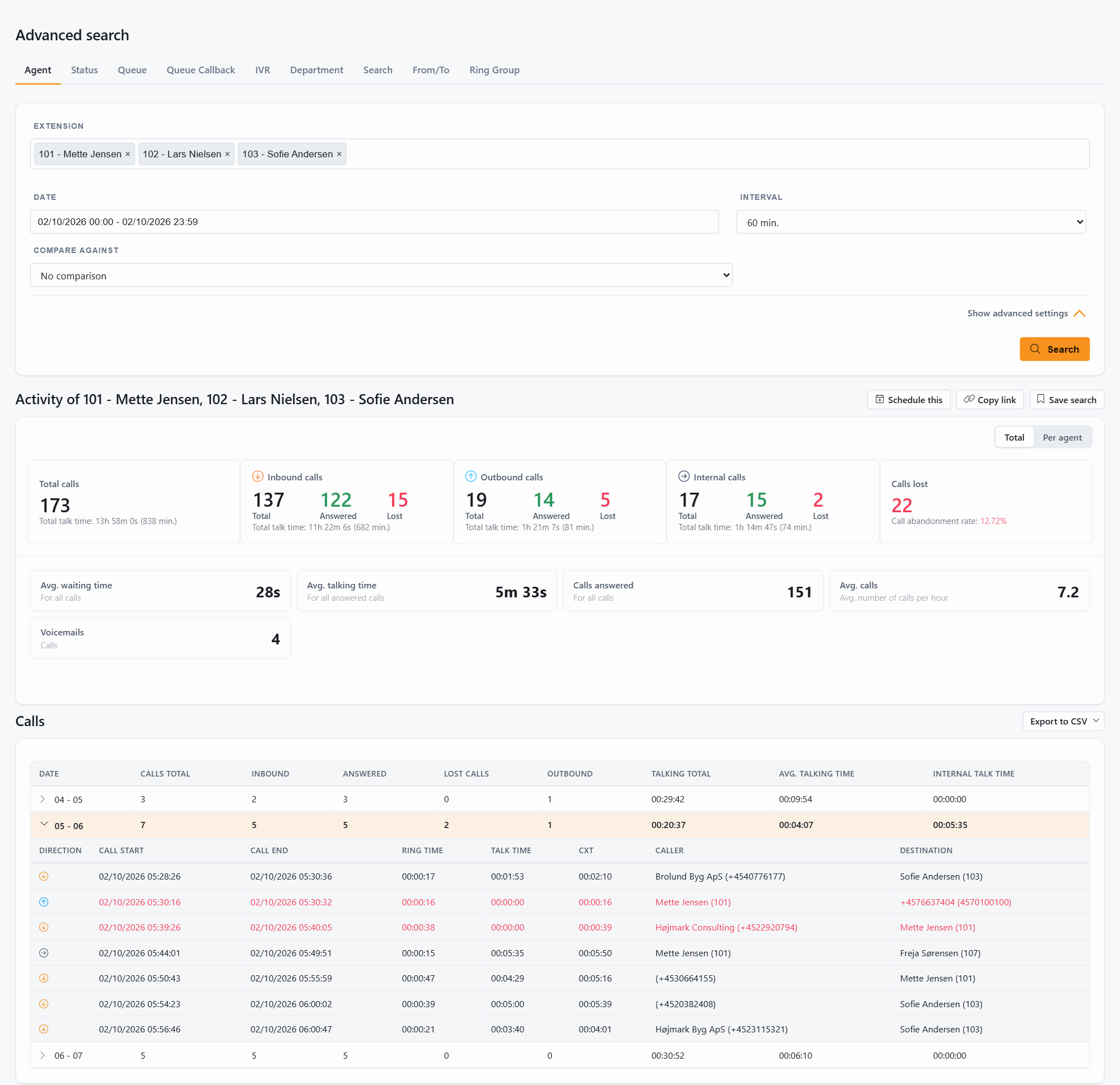
- Interval table: one row per interval you chose (per day, per hour, down to 1 minute). Click a row to unfold the calls in that interval.
- Call list: direction, start and end, ring or waiting time, talk time, customer experience time, caller and destination. Click a call to open its call flow.
- Call flow: the whole journey of that one call, from the trunk or extension it started at, through IVRs and queues, to whoever answered, with the time spent at every step.
- Export to CSV above the table saves the detailed report.
Each tab has its own article: Agent, Agent status, Queue/IVR, Department and Free search. Very large searches: see Limits and tips.
New to JEDWare? The 3CX reporting feature page sums up the call flow, the searches and the scheduled reports, with a free 14-day trial.