
Time: about 15 minutes for a typical “number, opening hours, menu, queue” flow.
Before you start
- The Call flow module must be part of your JEDWare license. Without it the page shows what the module does and a Contact support button.
- You need an administrator login (see Who can use the Call Flow Designer).
- Prompts, the audio the caller hears, are WAV files on the 3CX server. 8 kHz, 16-bit mono plays best. Upload them or record them from an extension; see “Prompts” below.
- Building and saving never changes anything on 3CX. Only publishing does.
Start from what you have
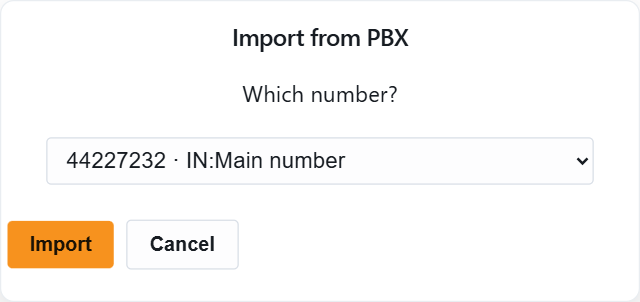
- Open Tools › Call flow and choose Import from PBX.
- Under “Which number?” pick a number, or Everything for all rules. Numbers are listed with the line they belong to, for example “44227232 on 1TEL.DK”. A rule without a number shows as “Any number on 1TEL.DK”.
- The designer draws the current 3CX routing for it as a new flow. Give it a name and save. Nothing on 3CX has changed.
Or start empty with New flow: enter a name, then add an incoming number as the first step.
Add and connect steps
Steps are not dragged from a palette. Every open port shows Choose destination
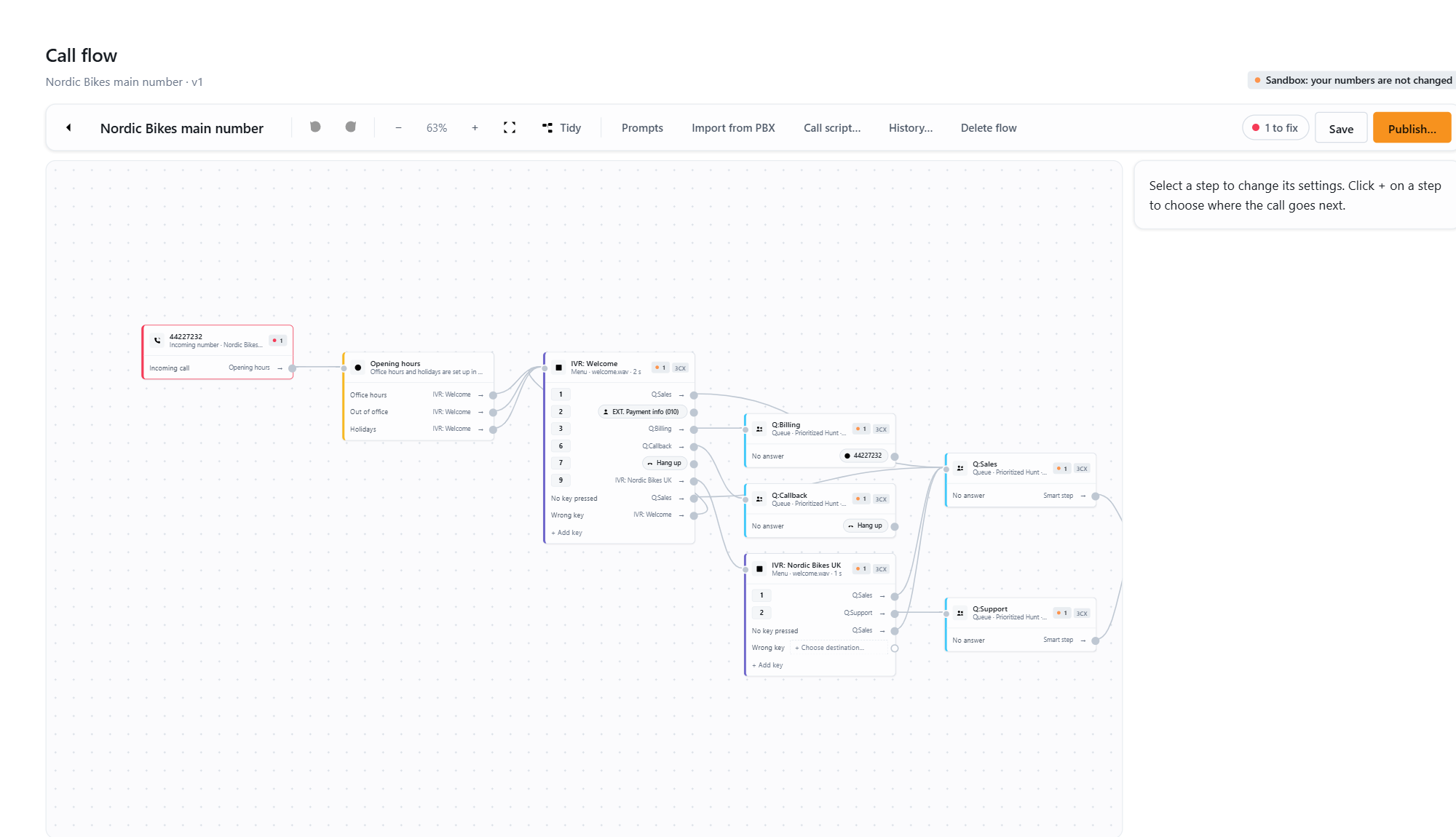
- Incoming number. A new flow asks for one under “Choose an incoming number”. Numbers another flow already uses are greyed out and say which flow has them. One flow can hold several numbers.
- Opening hours. Click Choose destination… on the incoming call port and pick Opening hours under “Add a new step”. By default all calls follow Office hours. Click Route out-of-office or holidays differently to add the Out of office and Holidays ports. Office hours and holidays themselves are set up in 3CX.
- Menu. Pick Menu under “Add a new step”. In the step settings give it a name and a prompt, and set how long to wait for a key. Click Add key for each key the caller can press; a key can also replay the menu. Connect No key pressed and Wrong key too, or the status pill will show what is missing.
- Destinations. On any port, “Send the call to” offers An extension, Someone’s voicemail, An existing queue, An existing ring group, An existing menu, An external number or Hang up. “Add a new step” creates a new Queue or Ring group that the designer will build in 3CX; give it a name and pick its agents or members. “Go to a step in this flow” sends the call back to a step you already have.
- Save. Ctrl+S works too.
The picker tells you when 3CX does not allow a connection, for example a menu key straight to an external number. Put a queue or ring group in between.
Moving a card by hand is fine; Tidy lays the flow out again. Undo and Redo in the toolbar step through your edits.
Example: Nordic Bikes sales line
Incoming number 44227232
  -> Opening hours
       Office hours   -> Menu "Sales" (prompt sales_menu.wav)
                           Key 1          -> Queue 800 (existing)
                           Key 2          -> Extension 103
                           No key pressed -> Queue 800
                           Wrong key      -> replays the menu
       Out of office  -> Voicemail 103
       Holidays       -> Voicemail 103
Reusing what is already in 3CX
A queue, ring group or menu picked from 3CX gets a 3CX tag and its settings are shown greyed out. The designer only routes calls to it. To let the designer change its name, agents or prompts on publish, switch on Let the designer change this 3CX object at the top of the step settings. The tag becomes 3CX · editable.
Prompts
Prompts in the toolbar opens the prompt library on your 3CX server. Upload… takes a WAV file (up to 20 MB; other formats are converted and flagged). Record… rings an extension you choose: pick up, speak, hang up, and the recording is saved under the file name you gave. Every prompt has a Play button, in the library and in the step settings.
Check it
The designer checks the flow while you work. The status pill in the toolbar reads Ready to publish, 2 to fix or 1 warnings; click it to jump to the next problem, and the step with the problem carries a badge. A flow with something to fix cannot be published.
| The designer says | Meaning | Fix |
|---|---|---|
| A port has Choose destination… | The call has nowhere to go from that port | Connect it, or pick Hang up |
| The incoming number is used by another flow | Two flows claim the same number | Remove it from one of them |
| Prompt not found | The WAV is not in the 3CX prompt folder | Upload it under Prompts |
| Not reached by any call | No arrow leads to this step | Connect it or remove it |
| A queue or ring group has no agents | A new queue needs at least one | Pick agents in the step settings |
Several numbers, several flows
- One flow can hold many numbers; each gets its own branch, or several can share a menu.
- You can also keep one flow per number or per department. Flows are independent: test, publish and undo them separately.
- The same number cannot be in two flows.
Working together
If someone else saves the flow while you are editing, saving shows “Someone else saved this flow” and offers Reload their version or Overwrite with mine. The flow list shows who last updated each flow, and the header of an open flow shows who published it and when. See Undo a publish and history.