
Every queue on a wallboard has an SLA time: the longest a caller should wait before an agent answers. With SLA sound alerts turned on, the wallboard plays a warning sound when the longest waiting caller gets close to that time, and a second sound when the SLA is breached, so the team hears the problem before it shows up in the statistics.
Before you start
- SLA alerts are set per queue on the Queues tab. The tab has SLA columns on Layout 1, 2, 3, 4, 9 and 12. Layout 8 and 10 list their queues without alert thresholds, and Layout 5, 6 and 7 have no queues at all.
- Your JEDWare role needs the Wallboard Settings feature. See User roles.
- The sounds play in the browser that shows the wallboard, so the screen needs a speaker and the browser must not be muted.
1. Open the Queues tab of the wallboard
- In the left menu, open Wallboard and click Settings.
- On the Wallboards tab, click the wallboard you want alerts on.
- Click the Queues tab. Every queue on the board has one row with its alert thresholds.
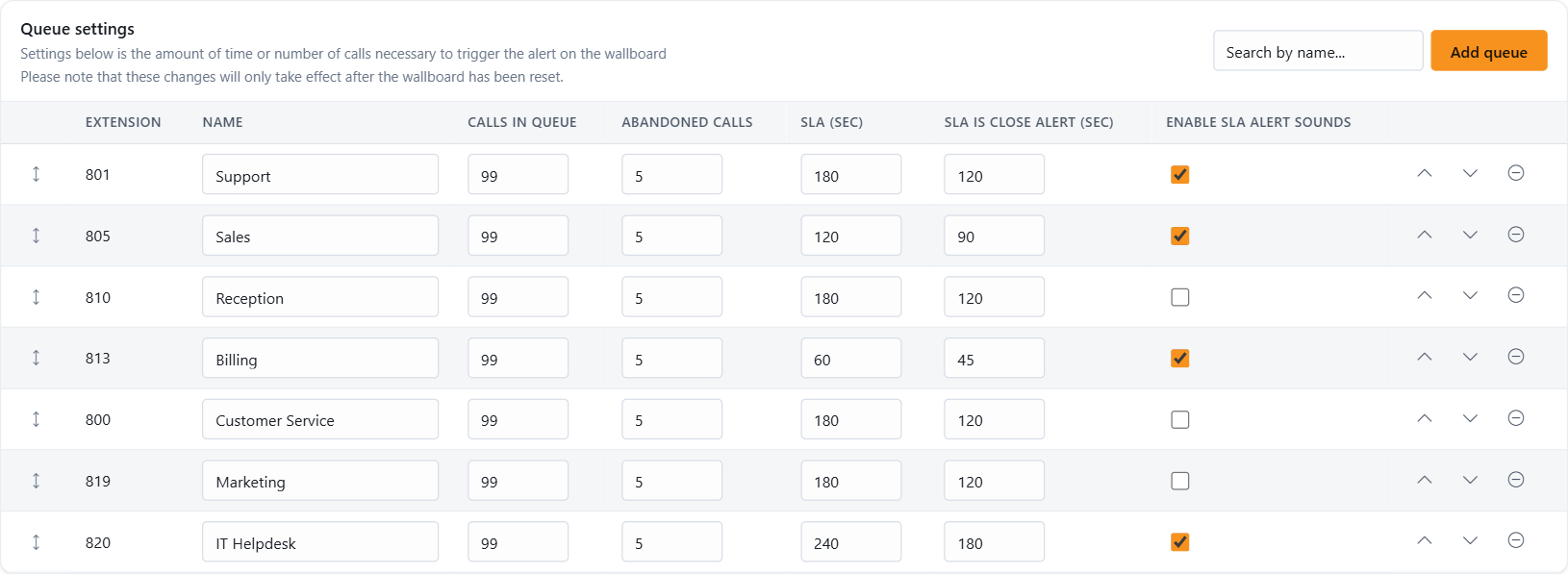
2. Set the SLA times for the queue
Three columns control the sound alerts. Fill them in for each queue that should alert:
- SLA (sec): the wait time you promise callers in that queue, in seconds. 180 is three minutes.
- SLA is close alert (sec): the wait time at which the warning sound plays. Set it lower than the SLA, for example 120 for an SLA of 180, so the team gets a minute to react.
- Enable SLA alert sounds: tick the box to turn the sounds on for that queue. Without the tick, the thresholds only change the colors on the board.
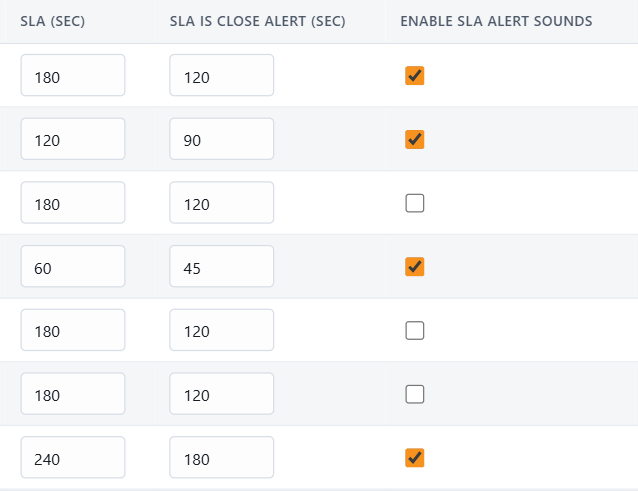
3. Save and reset the wallboard
Click Save in the bar at the bottom of the page. Queue settings take effect after the next wallboard reset. To apply them right away, open the General tab and click Reset wallboard now, then reload the wallboard on the screen.
What happens on the wallboard
- When the longest waiting caller in the queue reaches the SLA is close alert time, the wallboard plays the warning sound.
- When the wait passes the SLA time, the queue box turns red and the wallboard plays the SLA alert sound. The sound plays once per breach, so it does not repeat while the caller keeps waiting.
- The two other columns, Calls in queue and Abandoned calls, are visual alerts only: the queue box turns red when the number of waiting callers or lost calls reaches the value. They do not play a sound.
The alerts use the live queue data from 3CX, so a caller who hangs up before the threshold does not trigger them.