Wallboard Layout 2 - Multiple Queues Wallboard

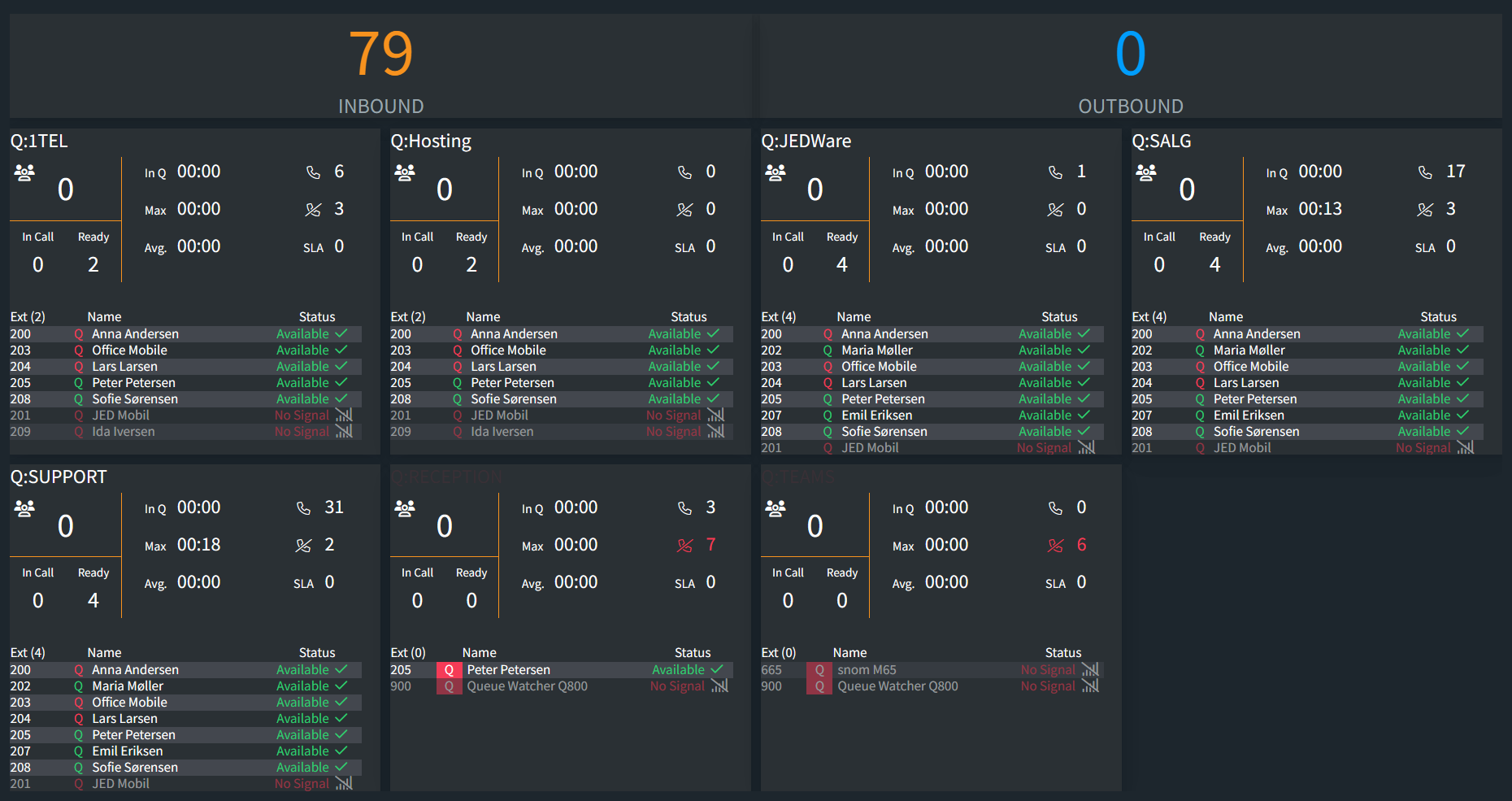
Wallboard Layout 2 gives you a combined live overview of six to eight queues at once. The board scales with the number of queues you select, and the Inbound/Outbound counter at the top keeps the daily totals visible at all times.

Reading the wallboard

Waiting iconCallers waiting in the queue
Talking iconCallers talking with an agent right now
IN QHow long the first caller in the queue has been waiting
WAITThe longest a caller has waited since the last reset
AVGAverage waiting time since the last reset for the queue
ANSAnswered rate in percent
Answered iconAnswered calls since the last reset
Lost iconLost calls since the last reset
SLACalls exceeding the SLA time
ExtEvery queue member’s current extension and queue status
Daily InboundInbound calls across all selected queues
Daily OutboundOutbound calls made by the agents selected in outbound tracking

Wallboard Layout 2 settings

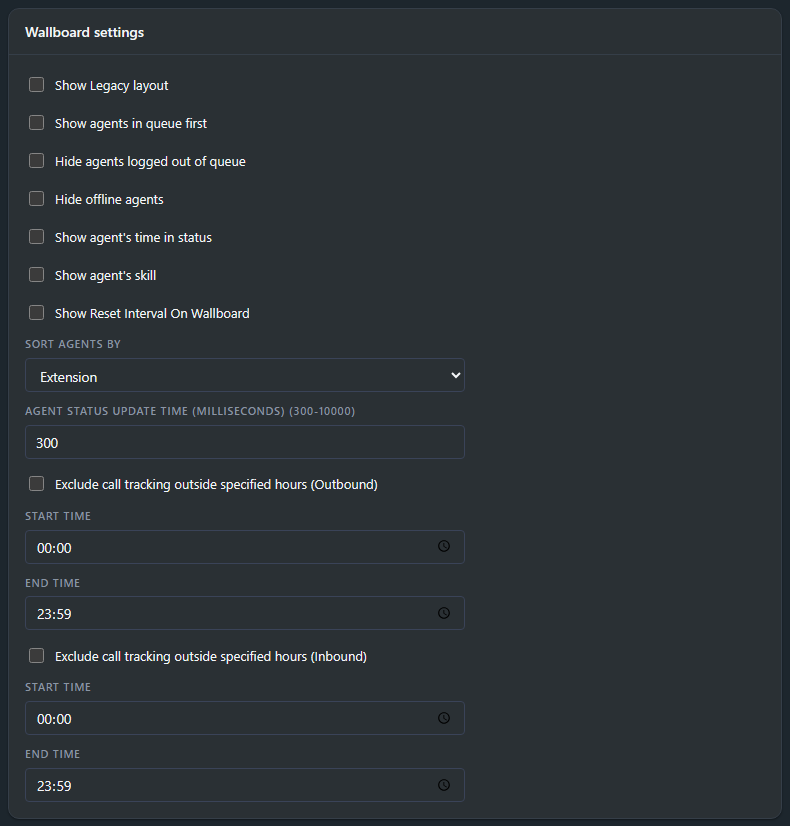
Display options

  • Show Legacy layout swaps the top Inbound/Outbound counter for the legacy counter that occupies a queue slot.
  • Show agents in queue first sorts agents logged into the queue to the top of the list.
  • Hide agents logged out of queue removes agents that are not logged into the queue from the board.
  • Hide offline agents removes offline agents entirely.
  • Show agent’s time in status shows how long each agent has been in the current status.
  • Show agent’s skill shows each agent’s skill from the 3CX queue.
  • Show Reset Interval On Wallboard displays the reset schedule on the board itself.
  • Sort agents by orders the agent list by extension, name or status.
  • Agent status update time sets how often the board refreshes, from 300 to 10000 milliseconds. On large systems with many queues and agents, raising it from 300 ms toward 5000 ms lowers the load on your 3CX server.
  • Exclude call tracking outside specified hours keeps calls outside the start and end times you set out of the numbers, so night calls stay out of the daily figures. Outbound and inbound tracking each have their own time window.

Press Save after changing settings.

Reset schedule

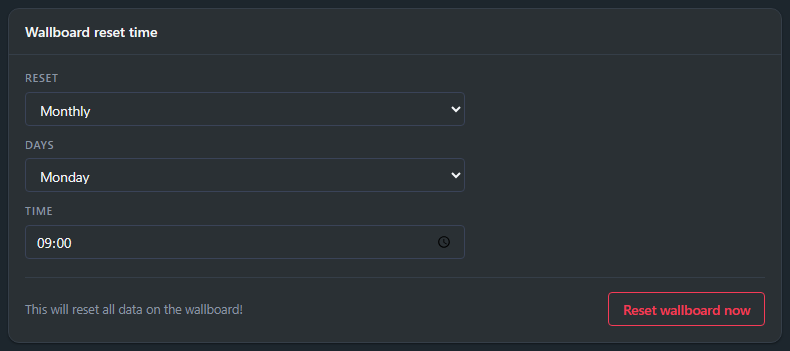
The wallboard counts from its last reset. Reset sets the schedule: daily, weekly or monthly. Days picks the weekday or day of the month, and Time is the time of day the counters clear.

Reset wallboard now clears all data on the wallboard immediately.

Share the wallboard

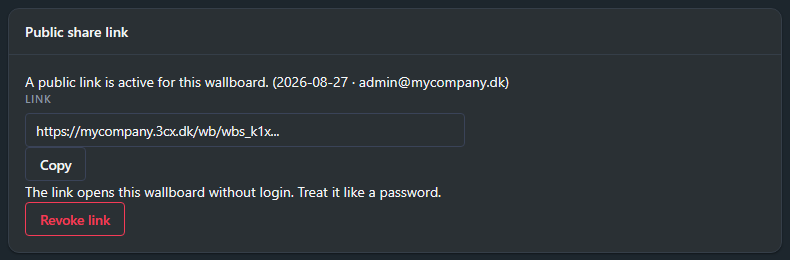
Generate a public link and open it on any screen (a TV, an info display, a browser): the wallboard runs live without logging in.

The panel lists every link with when and by whom it was created. Treat a link like a password: anyone who has it can see the board, and you can delete it at any time to revoke access.

For creating wallboards and the settings shared by every layout, see How to create a wallboard.

Find more Wallboard info in the posts below

Wallboard Gallery

Wallboard Gallery Empower Your Team with Real-Time Data Effective wallboards deliver real-time operational insights, keeping your team informed and proactive.

Read More »