
About Wallboard Layout 8
Wallboard Layout 8 displays inbound statistics for both the agents and queues
The wallboard is an excellent monitoring tool for incoming call center team leaders and agents. The wallboard includes sorting options on the majority of table rows, resulting in a dynamic experience wherein the agents/queue change position based on their data.
This wallboard can show up to 25 separate queues and their agent’s individual call statistics at the same time. The wallboard view is determined by the number of queues added to the wallboard. You will be able to scroll in both the queue list and the extension list.
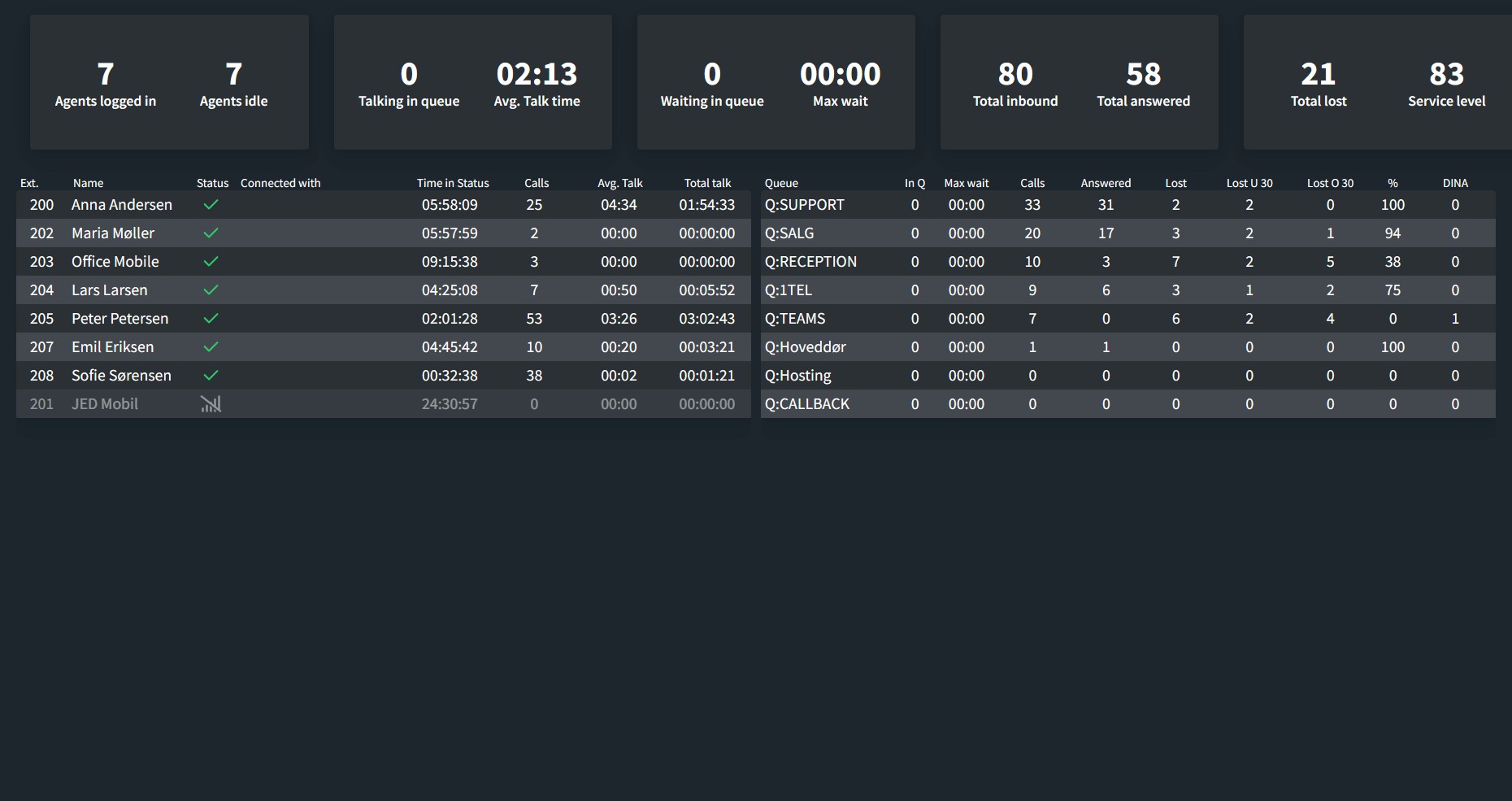
Explanation of wallboard measurements
Queue calls are the aggregate of all calls made to the queues, that has been chosen to be shown on the wallboard.
Example: Queue 800 has 20 queue calls, Queue 801 has 100 queue calls, and Queue 802 has 50 Queue calls. In this instance, the number 170 will be displayed.
Answered queue calls displays the number of answered queue calls.
Service level for all queues is the service level combined for all queues.
The service level calculation is: Answered / (Calls – Lost U 30) * 100
Waiting in queue is the amount of people/customers currently waiting in all queues combined.
Agents logged in is the amount of agents currently registered combined for all Extensions.
Agents Idle is the amount of agents with the available status.
Column explanation
Ext – Displays each agent’s extension number.
Name – Displays the agent’s name.
Status – Displays the agent’s current status. Available, busy, dialing, ringing, DND, or one of two custom statuses are all options.
Connected with – Displays the phone number to which the agent is connected if they are connected.
Time in call – This displays the amount of time the agent has spent on a call, beginning with the moment the recipient answers the phone.
Calls – This metric displays the total number of successful inbound calls. When a call is answered, it is considered successful and valid. Outbound calls will have no effect on this value.
Average talk – This metric displays the agent’s average talking time. Only successful Inbound calls are counted.
Total talk – The entire time the agent has been in an active inbound call.
Wallboard Layout 8 settings
Select queues
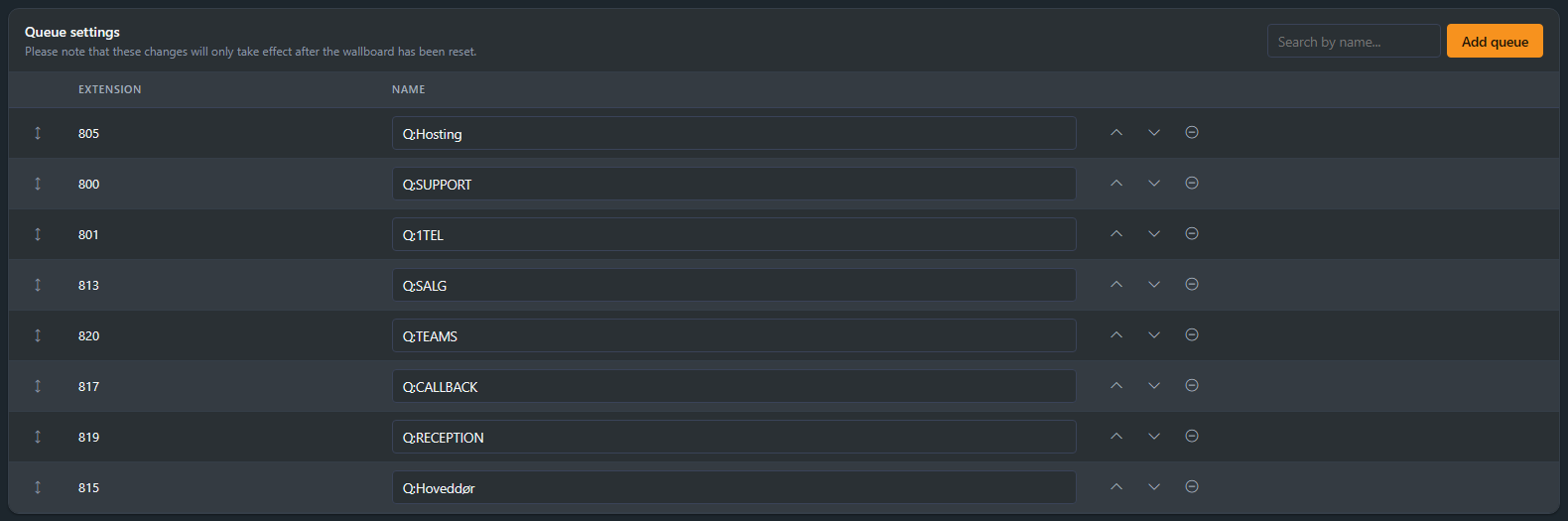
Open the Queues tab and add the queues that should appear on the board with Add queue. Reorder them with the arrows and remove one with the minus button. Changes take effect after the wallboard resets.
Display options
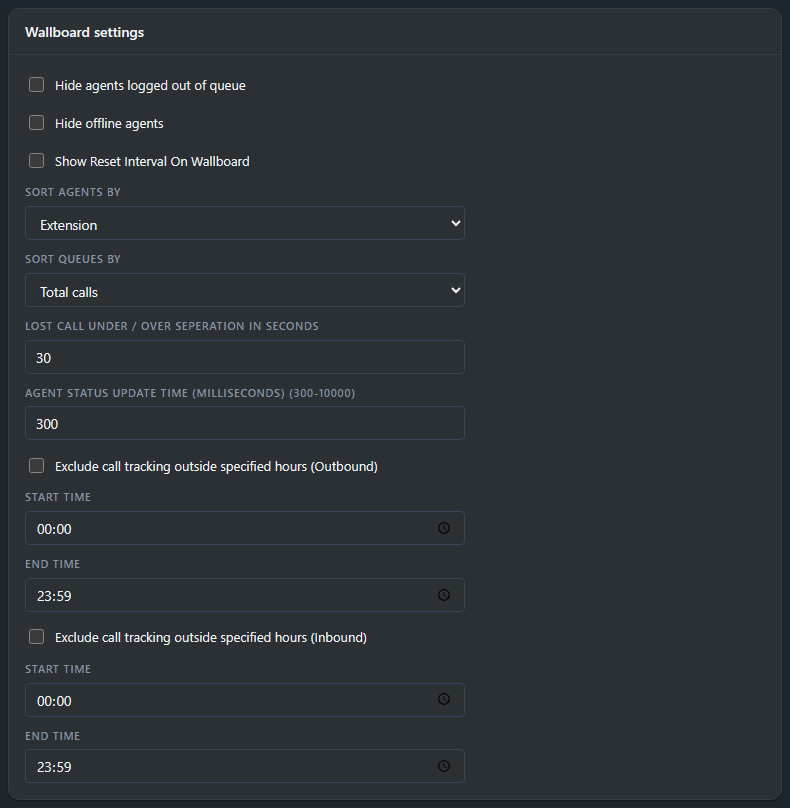
- Hide agents logged out of queue removes agents that are not logged into the queue from the board.
- Hide offline agents removes offline agents entirely.
- Show Reset Interval On Wallboard displays the reset schedule on the board itself.
- Sort agents by orders the agent list by Extension, Name or Calls.
- Sort queues by sets the order of the queue table, for example by total calls.
- Lost call under / over separation is the threshold in seconds that splits lost calls into the Lost U and Lost O columns (default 30). It is also part of the service level calculation.
- Agent status update time sets how often the board refreshes, from 300 to 10000 milliseconds. On large systems with many queues and agents, raising it from 300 ms toward 5000 ms lowers the load on your 3CX server.
- Exclude call tracking outside specified hours keeps calls outside the start and end times you set out of the numbers, so night calls stay out of the daily figures. Outbound and inbound tracking each have their own time window.
Press Save after changing settings.
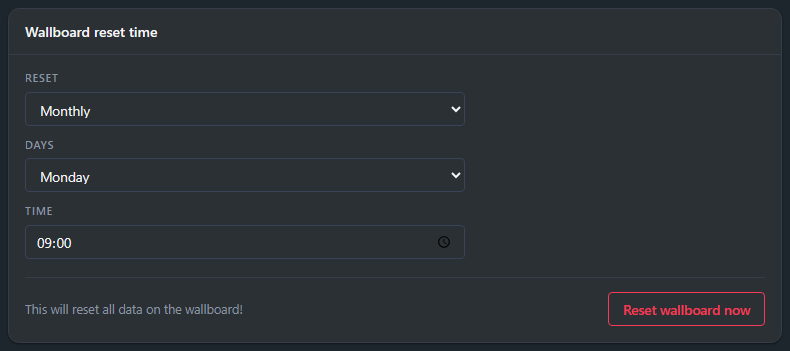
Reset schedule
The wallboard counts from its last reset. Reset sets the schedule: daily, weekly or monthly. Days picks the weekday or day of the month, and Time is the time of day the counters clear.
Reset wallboard now clears all data on the wallboard immediately.
Share the wallboard
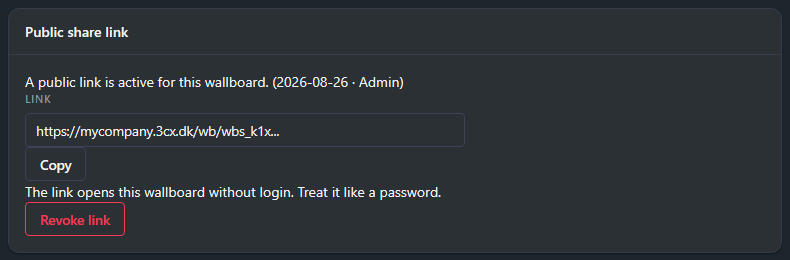
Generate a public link and open it on any screen (a TV, an info display, a browser): the wallboard runs live without logging in.
Click Generate link in the Public share link panel on the General tab. The panel shows when the link was made and by whom, Copy puts it on the clipboard, and Revoke link kills it. Treat the link like a password: anyone who has it can see the board.
For creating wallboards and the settings shared by every layout, see How to create a wallboard.
Want the short version? The 3CX wallboard feature page sums up every layout, the SLA alerts and the no-login share link.