
Time: two minutes per holiday.
Add a holiday
Click Add holiday above the table.
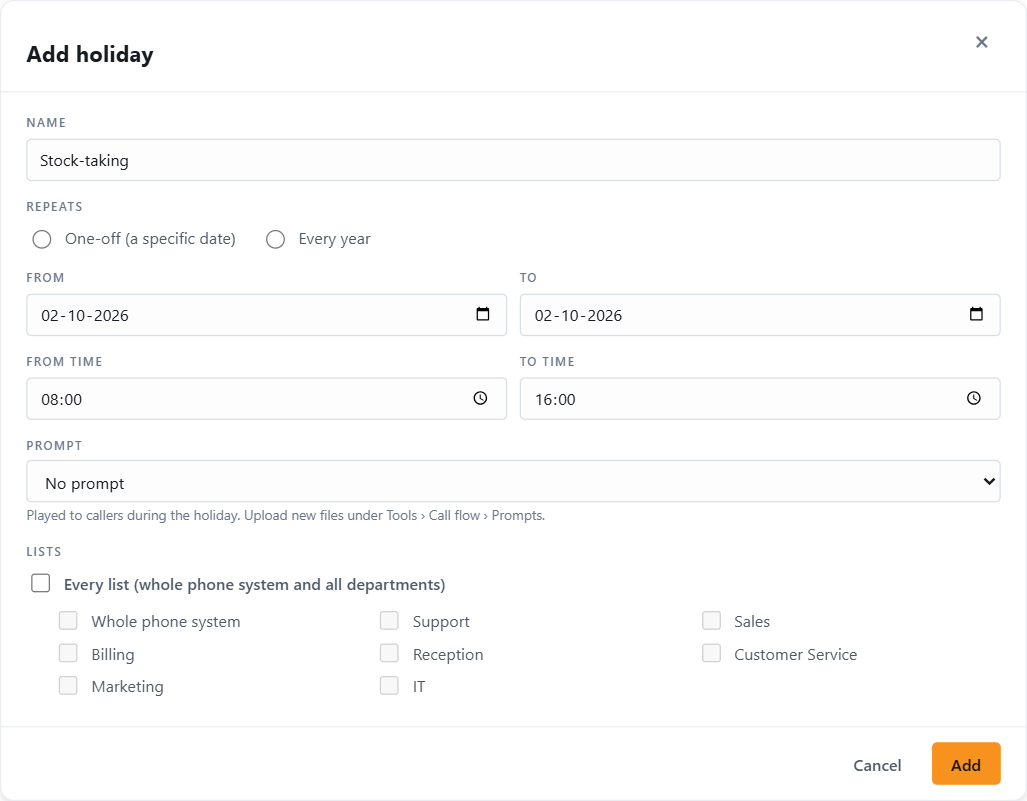
Name. Up to 80 characters. Use the name your colleagues use; it is what you will see in the table and in 3CX.
Repeats.
- One-off (a specific date) for movable holidays (Easter, Ascension) and for closures (stock-taking on 12 March 2027, the summer shutdown).
- Every year for holidays that fall on the same month and day every year (Christmas Eve, New Year’s Day, Constitution Day). The year is not stored, so it never goes stale.
From and To. For a one-off holiday, two dates; To fills itself with the same date, change it for a range. For an every-year holiday, a day and a month for each.
From time and To time. The default, 00:00 to 23:59, is the whole day. 23:59 means the end of the day, the same as in the 3CX console. Set 12:00 to 23:59 on New Year’s Eve to be open in the morning.
Prompt. The audio callers hear during the holiday. Pick a WAV file from the phone system, or leave No prompt to play the department’s normal holiday prompt. The play button lets you listen before you choose. New files are uploaded on the Prompt page in the left menu, or with the Prompts button in Call flow. If a file name is not found on the phone system, the holiday is still saved and a warning tells you.
Lists. Every list (whole phone system and all departments) is ticked by default and is what you want for a company-wide holiday. Untick it to choose lists one by one. A list that already has an identical holiday is skipped, so nothing is doubled.
Press Add. The message says on how many lists it was created, for example Added Stock-taking to 3 lists.
Example: Stock-taking, one-off, 12.3.2027, 08:00 to 16:00, prompt stocktaking.wav, lists Sales and Support only. The web shop’s department stays open.
If the form refuses
The message names the field: a missing name, a To date before From, a malformed time, or a list that no longer exists on the phone system. Fix it and press Add again.
Edit a holiday
Click the pencil at the end of the row. The form opens with the holiday’s values, and Lists shows which lists have it today.
- Change the name, dates, times or prompt and press Save: the entry is rewritten on every ticked list.
- Untick a list to remove the holiday from that list only.
- Tick a list to add it there.
A changed name, date or time gives the holiday a new identity in the page; the row simply reappears with the new values in its new place in the order.
Delete a holiday
Click the bin at the end of the row.
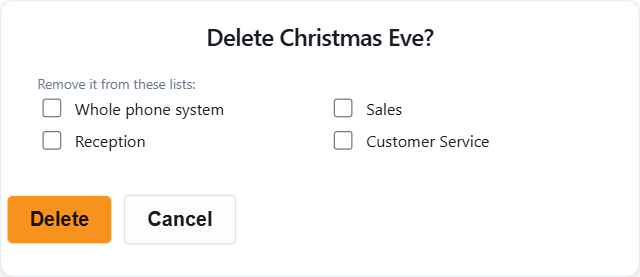
- If the holiday is on one list only, confirm with Delete.
- If it is on several lists, the dialog shows them all ticked. Untick the lists that should keep it, then Delete.
With a department selected in the filter above the table, the bin removes the holiday from that list only, no questions asked.
Every-year holidays are deleted like any other. There is no undo; add it again if needed.
Good to know
- Everything is written to 3CX immediately. Callers get the new routing on the next call.
- The 3CX Admin Console shows the same entries under each department. Changes made there appear on this page on the next load.
- Every add, edit and delete is recorded with your name in Admin settings › Log.
Next: Adding next year’s holidays.