
The water pipe burst, the whole team is at the funeral, or Support wants an uninterrupted lunch. Close now forces a department into a state until a time you choose, without touching its office hours or holidays. Keep open does the opposite: a department stays reachable outside its hours.
The tiles
The Right now section at the top of Tools › Hours & holidays has one tile per department. The line next to the heading says when the phone system was asked (As of 7 Sep 2026, 15:21 on the phone system); the tiles refresh every minute while the page is open.
Each tile shows:
- the department name and how many members it has;
- its state at this moment, which is what a caller gets right now, with office hours, holidays and any override combined:
| State | Meaning |
|---|---|
| Open | inside office hours, no holiday, no override |
| Closed | outside office hours |
| Break | inside a break period |
| Holiday | a holiday from the department’s list is on today; the tile names it (Today: Juleaften) |
| Custom | the department’s custom operator state |
| Unknown | 3CX could not evaluate the schedule; check the department in the Admin Console |
- Forced Closed until 7 Sep 2026, 18:00 (or until cleared) while an override is active; the tile also gets a colored edge;
- the next holiday on the department’s list (Next holiday: Juleaften on 24.12.2026), or No upcoming holiday;
- how many holidays and how many stale entries its list has.
Force a state
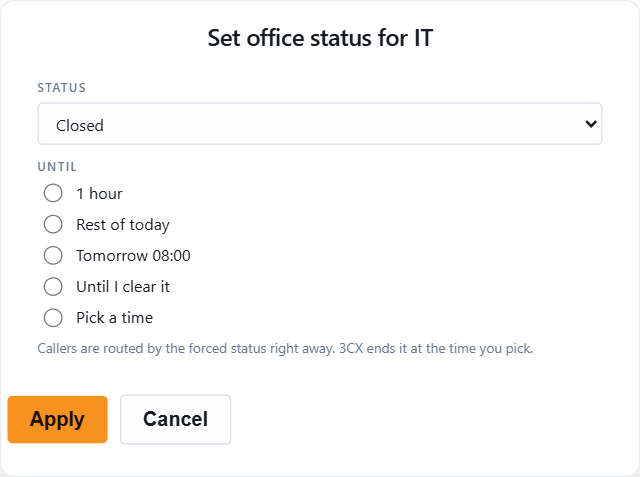
- On the department’s tile, click Close now (the dialog opens with Closed selected) or Keep open (Open selected).
- Status: what callers should get.
- Closed: the department’s out-of-office destination.
- Open: the office-hours destination, even outside hours.
- Holiday: the holiday destination and prompt.
- Break: the break destination.
- Custom: the custom operator destination, when the phone system offers it.
- Until: one of
- 1 hour
- Rest of today (until 23:59)
- Tomorrow 08:00
- Until I clear it: no end time. Remember to come back.
- Pick a time: any time in the future, up to a year ahead, in the phone system’s local time.
- Press Apply. Callers are routed by the forced state from the next call. The tile changes at once.
Example: 12:05, Support forced Break until 12:45 with Pick a time. At 12:45 3CX clears it by itself and the schedule takes over again.
While it is forced
The tile shows Back to schedule and Status….
- Back to schedule clears the override immediately. The department follows its office hours and holidays again.
- Status… opens the dialog again to change the state or the end time. The new override replaces the old one.
Rules
- Only departments can be forced, not the whole phone system.
- One override per department at a time.
- The override lives in 3CX, not in JEDWare. It survives a restart of the integration, and it is the same switch as Set office status in the 3CX apps, so an admin can see and clear it there too.
- An override wins over holidays and office hours. An override without an end time stays until someone clears it.
- Each override and each clear is recorded with your name in Admin settings › Log.
Where the calls go
The destinations for closed, holiday, break and custom are the department’s own settings in 3CX. Change them in the Admin Console under the department, or draw them with the Call flow designer’s opening-hours step. Hours & holidays only decides which of them applies right now.