
The installation takes about two minutes. You need:
- An administrator login on the 3CX server.
- Your JEDWare license key, found on your user page at customer.jed-ware.com.
- 3CX v20 Update 6 or later on Windows Server 2016 or later, or Windows 11 Pro or Enterprise. See JEDWare requirements.
Windows Server 2016 only: install .NET Framework 4.8 Runtime and Microsoft Visual C++ Redistributable x64 (2015-2022) before you run the JEDWare installer, and restart the server after the .NET installation. Without them the JEDWare service does not start.
Still running JEDWare integration 4.x? Uninstall it from Apps & features first, then follow this guide.
Already running JEDWare integration 5.0.2.x, installed before October 2026? Run the new installer anyway. It finds the old version, saves your license key, settings and call flows, and shows a message asking you to uninstall 5.0.2.x from Apps & features. Click OK, then Finish on the page that says the wizard ended prematurely; nothing went wrong, it stopped on purpose. Uninstall 5.0.2.x, then run the installer a second time: it restores everything, and the license key is already filled in on the key page.
Pick a quiet moment. The installer stops and starts the 3CX Nginx service. Web client and app users are disconnected for a few seconds and a call running in the web client or the apps can drop. Install outside office hours. The full restart of the 3CX server we recommend at the end ends every active call.
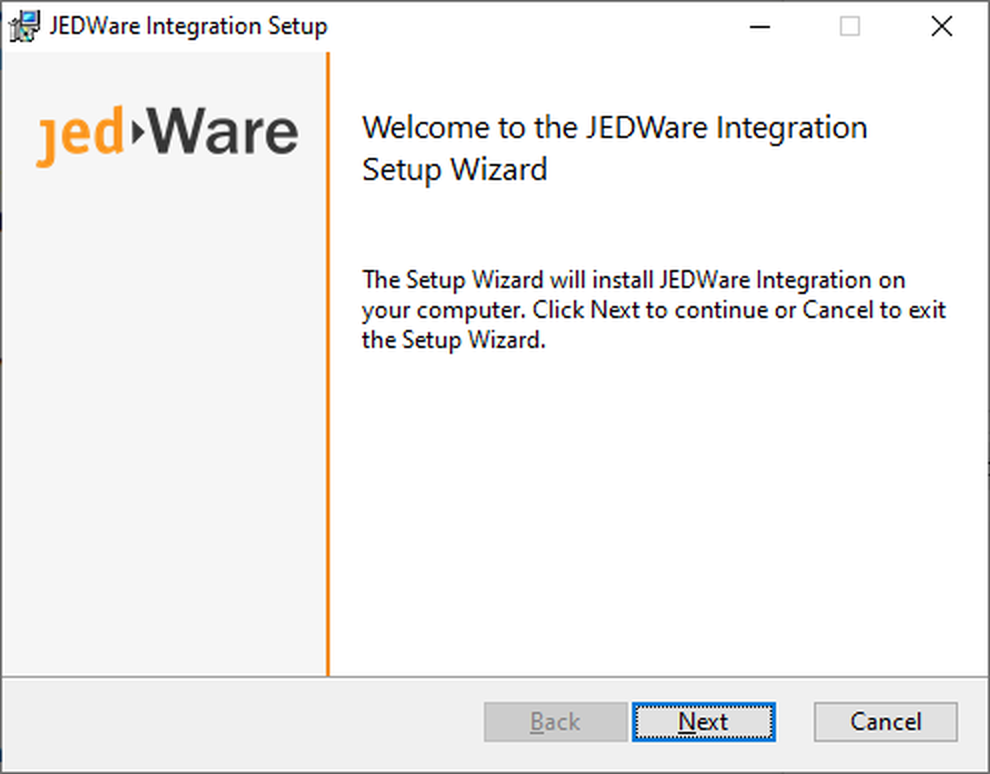
1. Download and run the installer
Download JEDWare.Integration.msi on the 3CX server and run it. Click Next.
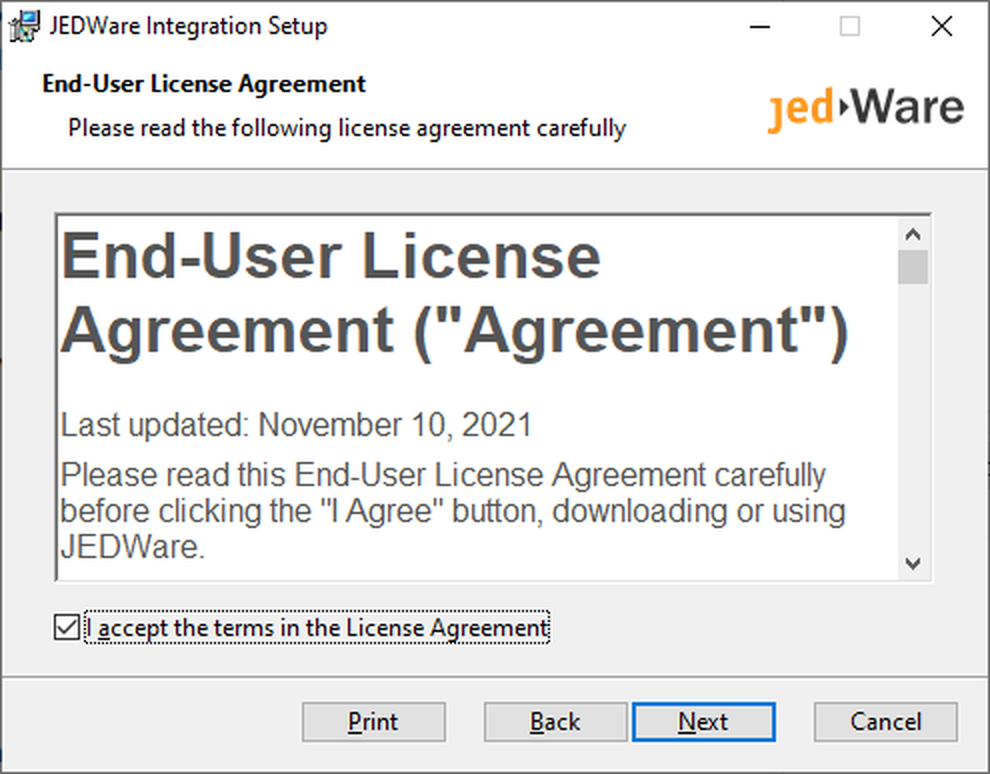
2. Accept the license agreement
Read and accept the license agreement, then click Next.
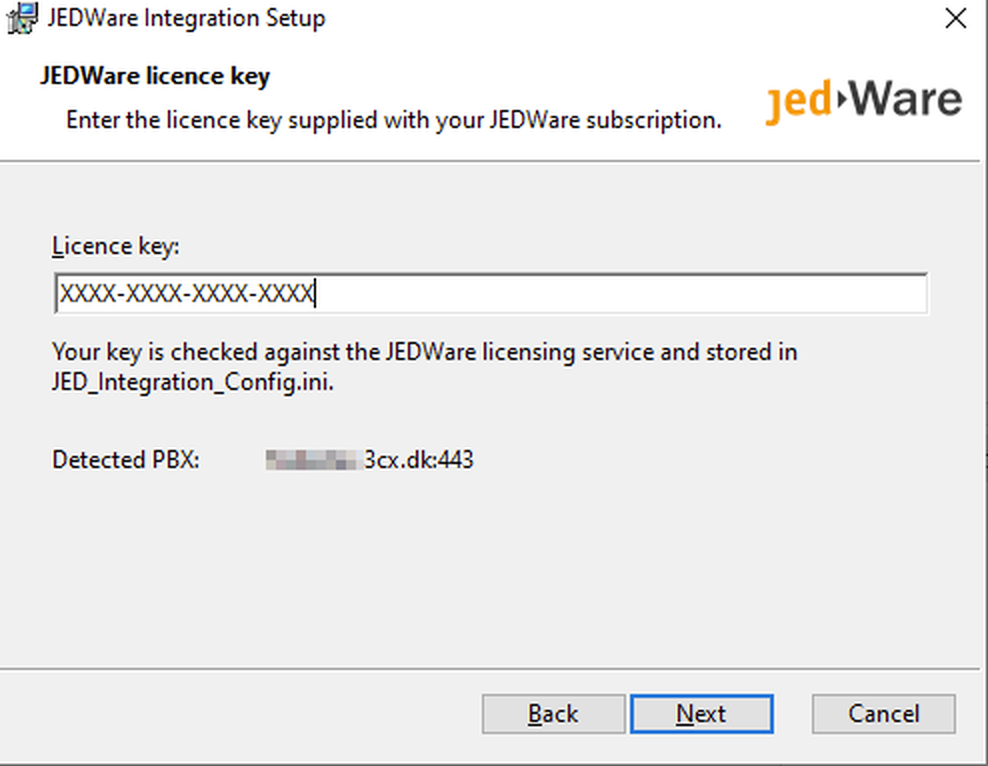
3. Enter your license key
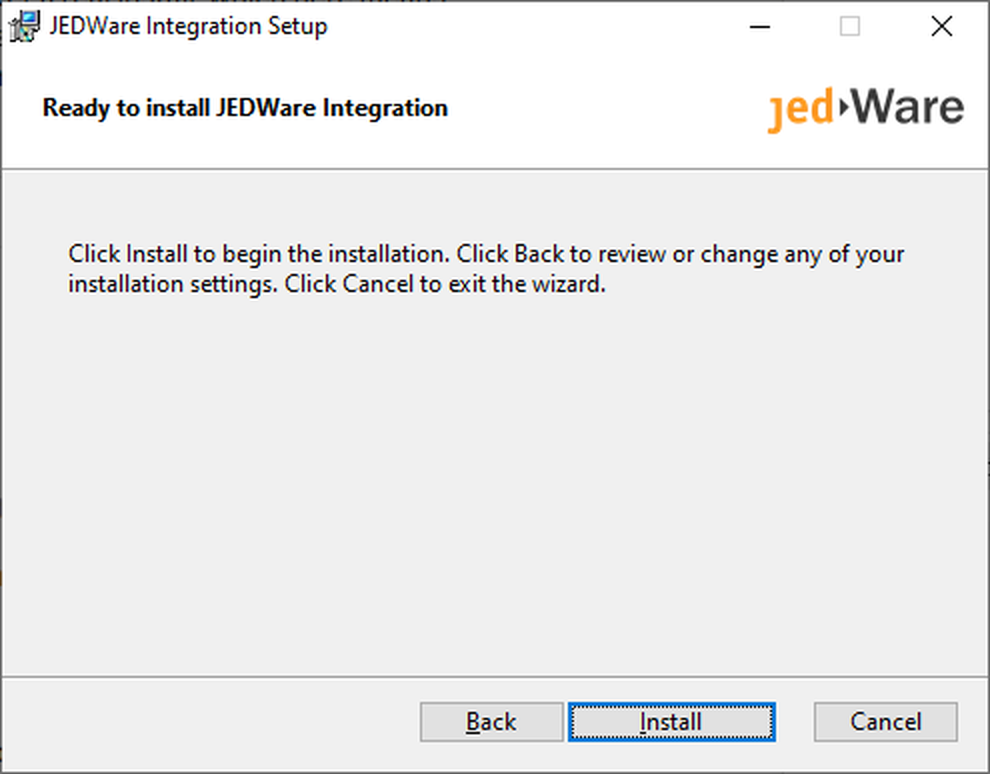
Paste your JEDWare license key and click Next, then Install. The installer registers the JEDWare Integration service and its updater service and starts both.
4. Finish
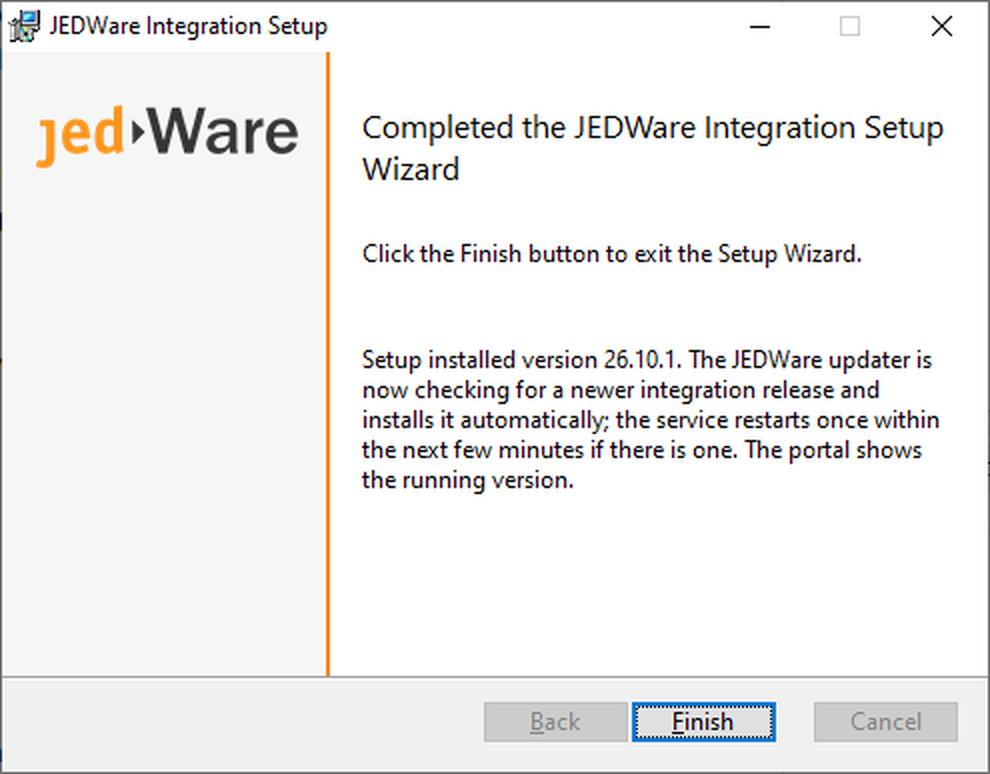
The last page names the version that was installed and says that the updater is checking for a newer release. If there is one, it is installed within a few minutes and the service restarts once; you do not have to do anything. Click Finish. We recommend a restart of the 3CX server afterwards, so every service starts in the right order.
5. Open JEDWare
Sign in at app.jed-ware.com. The integration status in the app should say connected, and your extensions and queues appear in the reports.
Uninstall on Windows
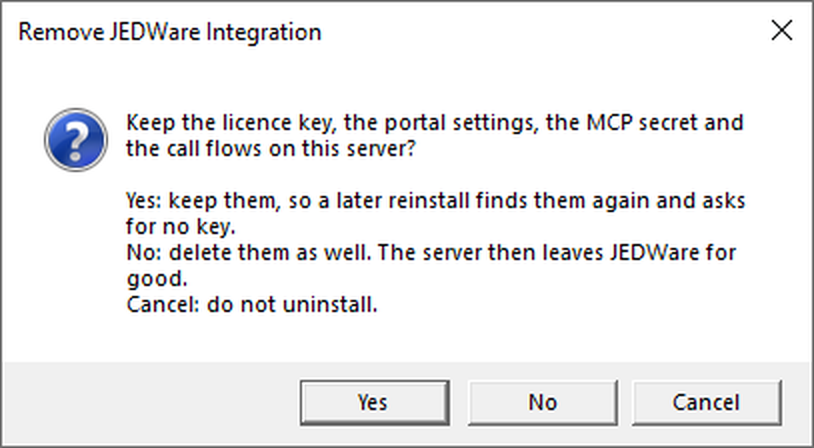
Open Apps & features, select JEDWare Integration and click Uninstall. The uninstaller asks whether to keep the license key, the portal settings, the MCP secret and the call flows on the server:
- Yes keeps them, so a later reinstall finds everything again and does not ask for the key.
- No deletes them too. The server then leaves JEDWare for good.
- Cancel does not uninstall.
The uninstaller stops and starts the 3CX Nginx service, so web client and app users are disconnected for a few seconds. Your JEDWare account, license, users, wallboards and scheduled reports stay in the cloud either way.
If something does not work
- The app says No connection: see Why is my integration status No connection.
- The service is not running: open services.msc and start JEDWare Integration, see How to restart the JEDWare service.
- Later updates of the integration: the integration updates itself; the app shows the installed version and lets you start an update by hand. See How to update your JEDWare integration.