
Scheduled reports in PDF format, sent by email

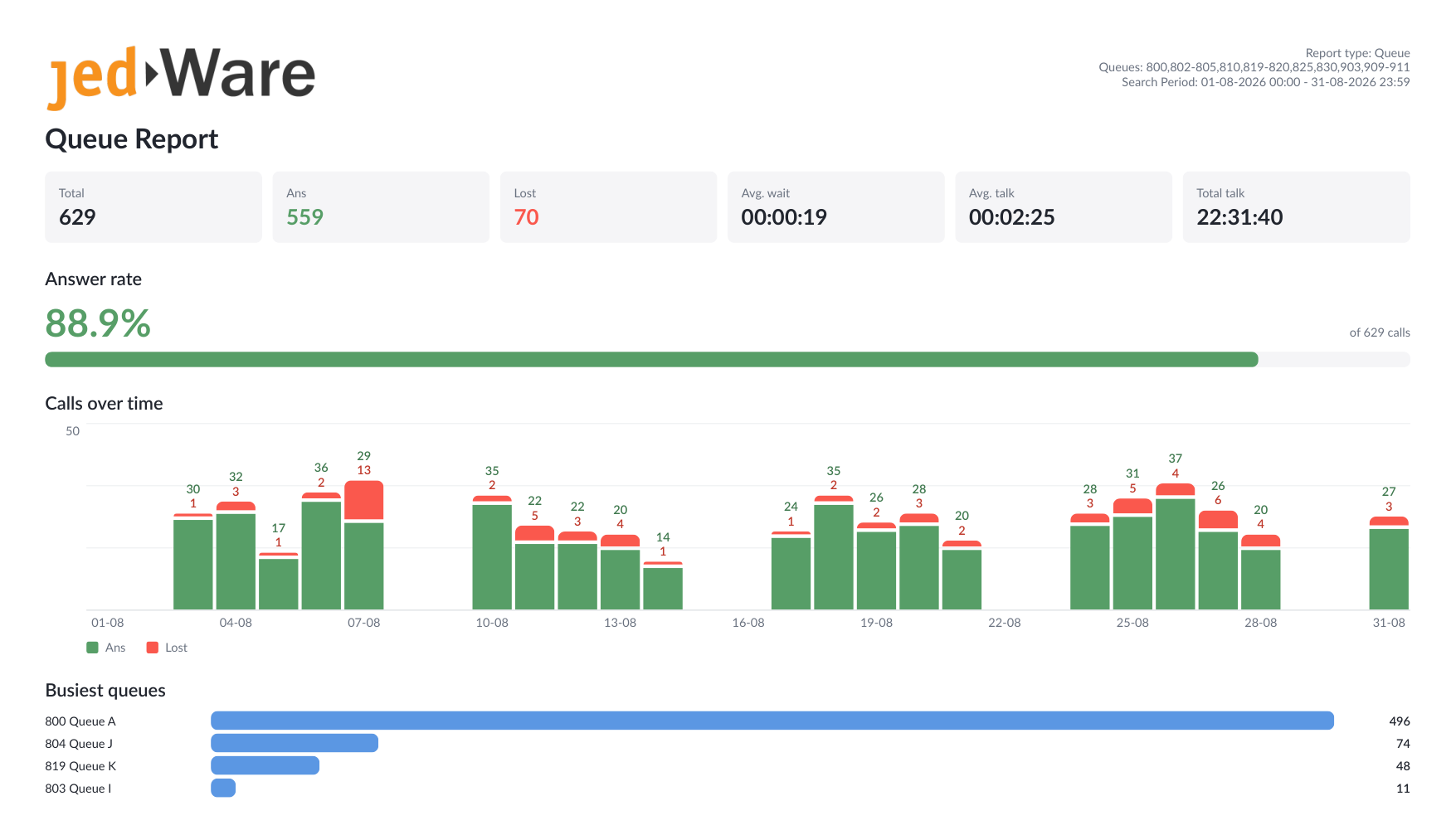
Scheduled PDF reports send a finished 3CX report by email on a fixed schedule, so a manager gets the numbers every morning, Monday or first of the month without opening JEDWare. Each PDF has a summary page with the key figures and charts, followed by the table sections for the agents, queues, ring groups or trunks the report covers.

There is a template for each kind of report: Agent, Agent Outbound and Agent Total, Group and Group Total for departments, Agent Status with its Group and Detailed variants, Queue, Queue Availability, Queue Inbound Activity and Queue Per Day, All Calls, Ring Group and Trunk. Every template has its own guide below with an example of the finished PDF from the summary page down to every table section, so you can see what the recipient gets before you set it up.

Scheduled reports are created under Report, Scheduled tasks in the left menu. You choose the template, the period the report covers, the agents or queues to include, agent-specific data if you want the figures counted per agent, the schedule and the recipients. The same page lists every scheduled task with its owner, and a department supervisor can manage the tasks for their own department.

If you need the raw data in Excel or Power BI instead of a formatted document, the Scheduled CSV reports guides describe the same templates as CSV files sent by email or uploaded to a folder.

For the sales-side overview of the JEDWare 3CX reporting tools, see the feature page.

JEDWare philosophy for 3CX reporting

3CX has built-in reports that suit many customers, but not all. JEDWare reads the raw 3CX call data through the 3CX API, never writes to the 3CX database, and applies its own rules when it calculates and presents the numbers. That is why a JEDWare report and a 3CX report

Read More »

Scheduled PDF reports by email

With Scheduled tasks, JEDWare builds a finished PDF report from your 3CX call data and emails it to the people who need it: the department manager every Monday, the team every morning, the board once a month. Need the raw data instead? See scheduled CSV reports. Before you start Scheduled

Read More »

Limits and tips for the JEDWare reports

JEDWare has no limit on how many calls a report can count. The Call log table stops at 25,000 rows, but every call is still in the totals and the CSV export. The practical limits are the resources of your 3CX server, which delivers the call data, and of the

Read More »

Troubleshooting Scheduled Reports

Start with Run now in the task list: it builds the report immediately, so you see within a minute whether the settings work. The email says "No calls found" The report ran, but the period had no calls that matched the settings. Typical causes: The data range covered a weekend

Read More »

Scheduled 3CX Agent Report to PDF and email

About the Agent report The Agent report lists every agent’s answered and lost calls for the period, split into inbound, outbound and internal, with totals, answer percentage and talk time. Use it to see how calls are spread across the team. The finished PDF looks like the example below. The

Read More »

Scheduled 3CX Agent Outbound Report to PDF and email

About the Agent report – Outbound The Agent report – Outbound lists every agent’s outbound calls for the period: answered, lost, total, talk time and averages. Most customers run it monthly for sales teams and outbound call centers. The finished PDF looks like the example below. The report contains: Agent

Read More »

Scheduled 3CX Agent report – total to PDF and email

About the Agent report – Total The Agent report – Total lists every agent’s calls for the period, split into external inbound, outbound to customers and internal calls, with totals, talk time and answer percentages. Most customers run it monthly. The finished PDF looks like the example below. The report

Read More »

Scheduled 3CX Group Report to PDF and email

About the Group report The Group report sums the calls of a group or department for the period: answered and lost calls per agent, split into inbound, outbound and internal, with talk time and percentages. Most customers run it monthly. The finished PDF looks like the example below. The report

Read More »

Scheduled 3CX Group report – Total to PDF and email

About the Group report – Total The Group report – Total shows how a group or department handles customer calls and internal calls in one table: inbound, outbound and internal calls per agent, with talk time and answered and lost percentages. The finished PDF looks like the example below. The

Read More »

Scheduled 3CX Agent Status report to PDF and email

About the Agent Status report The Agent Status report shows how much time each agent spent in each 3CX status during the period: available, break or DND, the two custom statuses, and the total. The finished PDF looks like the example below. The report contains: Agent ext, Name, all the

Read More »

Scheduled 3CX Queue report to PDF and email

About the Queue report The Queue report shows how each queue performed in the period: calls, wait times, answered and lost calls, DINA and service level, per agent in the queue. The finished PDF looks like the example below. The report contains: Agent ext, Name, Calls, Wait Time, AWT, Ans

Read More »

Scheduled 3CX Ring Group report to PDF and email

About the Ring Group report The Ring Group report shows how each ring group performed in the period: calls, wait time, answered and lost calls, DINA and service level per extension in the group. The finished PDF looks like the example below. The report contains: Extension, Name, Calls, Wait Time,

Read More »

Scheduled 3CX All Calls report to PDF and email

About the All Calls report The All Calls report gives the totals per day for the period (inbound, outbound, internal, lost, average wait and talk time) and lists every single call with direction, start, end, caller and destination. The finished PDF looks like the example below. The report contains: Date,

Read More »

Scheduled 3CX Trunk report to PDF and email

About the Trunk report The Trunk report shows the number of calls per trunk and DID number for the period, and how many of them were answered. Use it to see how much traffic each trunk and number carries. The finished PDF looks like the example below. The report contains:

Read More »

Table of Contents